Module 3 · Build Your Student Portfolio
Build Your Portfolio Page
Put your projects on one simple page with a link you can add to your CV and LinkedIn, using a free tool you already have.
About 25 minutes
One link for everything
Your goal is one link that you can put on your CV, LinkedIn, email signature and applications. When someone opens it, they should see who you are, what you can do, and your best work, in under a minute.
Choose a free tool
| Tool | Best for | Link looks like |
|---|---|---|
| Google Sites | Anyone. Drag and drop, free, works with Drive files | sites.google.com/view/your-name |
| Canva websites | Design-focused students | your-name.my.canva.site |
| GitHub Pages | Code and data students (see the Web Development course) | your-username.github.io |
| Your CloudTech Academy profile | Showing your badges and credentials | academy.cloudtechanalytics.com/learners/your-name |
If you're not sure, use Google Sites. It's free, quick and looks clean.
What goes on the page
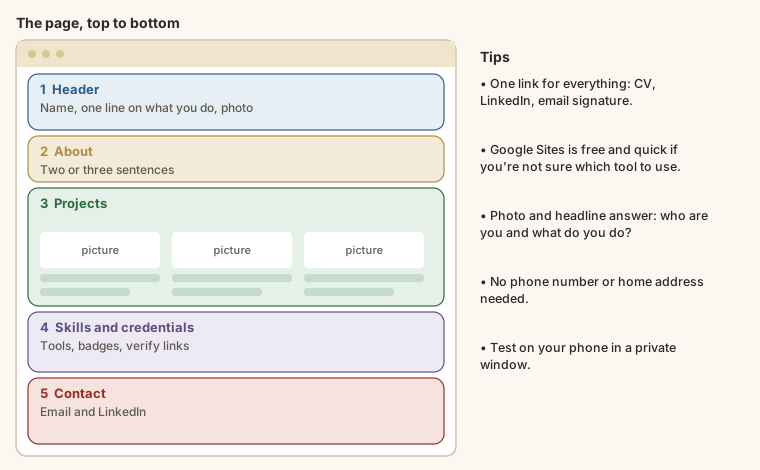
Keep it to one page with these sections, in this order:
- Header: your name, one line on what you do ("Accounting student at UNILAG · Excel and Power BI"), and a professional photo.
- About: two or three sentences on your interests and what you're looking for.
- Projects: your three best, each with a picture, the short summary and a link.
- Skills and credentials: tools you use, plus certificates and badges with their verification links.
- Contact: your email and LinkedIn. You don't need your phone number or home address.
Build it with Google Sites
- Go to sites.google.com and click Blank site (or pick a template).
- Type your name in the header and choose a simple theme under Themes.
- Use Insert → Text box for your About section.
- For each project, use Insert → Image and a text box for the summary, and add the link with the link button.
- To show a Drive file directly on the page, use Insert → Drive and pick the file.
- Click Publish, choose a web address, and publish.
Check it before you share it
- Open the published link in a private window on your phone. Does everything load?
- Click every link.
- Read it aloud once for typos.
- Ask a friend: "In 30 seconds, what do I do?" If they can't say, simplify the header.
Try it
Task
6 minWrite your page's header line (what you do, in one line, like "Accounting student at UNILAG · Excel and Power BI") and your About section (two or three sentences on your interests and what you're looking for). Header first, then a blank line, then About.
Your work is checked for
- A short header line first (under 15 words)
- An About section in the first person
- Says what you're looking for (role, internship, clients, opportunities…)
- Short: 25 to 90 words in total
Task
4 minBuild and publish your page with the five sections (header, about, at least one project, skills and credentials, contact). Test it on your phone in a private window. Paste the published link, then one line on what a friend said you do after 30 seconds on the page.
Your work is checked for
- A published page link (Google Sites, Canva, GitHub Pages, your CloudTech profile or your own domain)
- Not a private editing link
- What your friend said you do
Then add the link to your CV and to your LinkedIn Contact info or Featured section.
Earn your badge
Take the module check
Questions on this module. Pass and you earn the Portfolio Page badge, free.
Create a free account to earn the badge