Module 3 · Career Essentials
Quick Excel Analysis
Take a small business's sales table and answer real questions with it: sort and filter, total with SUM, SUMIF and COUNTIF, summarise with a PivotTable, and show the answer in a chart with a title that says something.
About 30 minutes
The situation
Mrs Okafor runs a small drinks and snacks kiosk near a university gate. She keeps a simple sales log, and before she reorders stock she wants answers to four questions:
- How much did we sell in these two weeks?
- Do drinks or snacks bring in more money?
- Which product earns the most?
- Are sales growing from one week to the next?
These are exactly the questions employers expect a new hire to answer in Excel on day one. You'll answer them all in this module, and type your answers into the tasks at the end to check them.
Get the data in
Open Excel or Google Sheets (everything here works in both). Copy the table below, click cell A1 of a new sheet, and paste.
Output
Date	Product	Category	Quantity	Price	Sales
01/06/2026	Zobo 50cl	Drinks	12	800	9600
01/06/2026	Chin chin	Snacks	5	1500	7500
02/06/2026	Kunu 50cl	Drinks	8	700	5600
02/06/2026	Zobo 50cl	Drinks	15	800	12000
03/06/2026	Plantain chips	Snacks	10	1000	10000
03/06/2026	Chapman	Drinks	6	1200	7200
04/06/2026	Chin chin	Snacks	7	1500	10500
04/06/2026	Puff-puff (6)	Snacks	14	500	7000
05/06/2026	Zobo 50cl	Drinks	20	800	16000
05/06/2026	Chapman	Drinks	9	1200	10800
08/06/2026	Kunu 50cl	Drinks	10	700	7000
08/06/2026	Plantain chips	Snacks	4	1000	4000
09/06/2026	Zobo 50cl	Drinks	18	800	14400
09/06/2026	Puff-puff (6)	Snacks	16	500	8000
10/06/2026	Chin chin	Snacks	6	1500	9000
10/06/2026	Chapman	Drinks	11	1200	13200
11/06/2026	Kunu 50cl	Drinks	12	700	8400
11/06/2026	Zobo 50cl	Drinks	22	800	17600
12/06/2026	Plantain chips	Snacks	9	1000	9000
12/06/2026 Puff-puff (6) Snacks 20 500 10000You should have 20 rows of sales under a header row, in columns A to F. If everything landed in column A, select column A and use Data → Text to Columns → Delimited → Tab.
Each row is one sale entry: the date, what was sold, how many, the price of one, and Sales (quantity × price).
Now click any cell inside the data and press Ctrl + T (in Google Sheets: Format → Convert to table), and confirm. It becomes a Table: filter buttons on every heading, banded rows, and it grows automatically when you add new sales at the bottom.
Sort and filter
Click the arrow on a column heading:
- Sort Largest to Smallest on Sales puts the biggest sales at the top. The best single entry is 22 Zobo on 11 June: ₦17,600.
- Filter on Category: untick everything except Snacks. Only the snack rows show, and the status bar's Sum shows snack sales.
Filters hide rows, they don't delete them. Clear the filter afterwards (arrow → Clear Filter) so your formulas and PivotTables see everything.
Answer questions with formulas
Formulas calculate from the data and update by themselves when the data changes. Click an empty cell to the right of the table, such as H2, and type these one at a time:
| Question | Formula | What it does |
|---|---|---|
| Total sales? | =SUM(F2:F21) | Adds every value in F2 to F21 |
| Average sale entry? | =AVERAGE(F2:F21) | Total ÷ number of entries |
| How many Zobo entries? | =COUNTIF(B2:B21,"Zobo 50cl") | Counts cells in B that equal "Zobo 50cl" |
| Total Drinks sales? | =SUMIF(C2:C21,"Drinks",F2:F21) | Adds F only where C is "Drinks" |
| Entries of ₦10,000 or more? | =COUNTIF(F2:F21,">=10000") | Counts cells in F that are at least 10,000 |
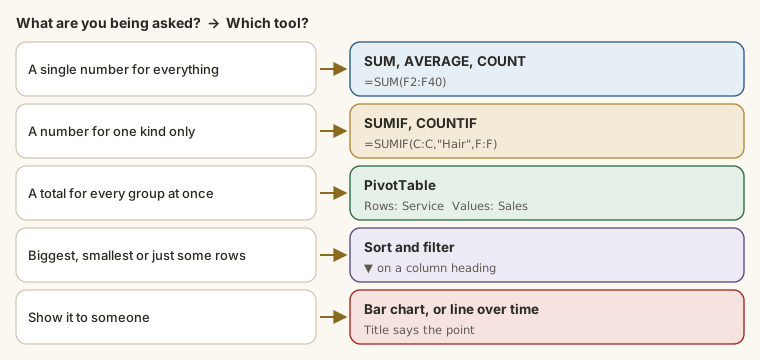
Read SUMIF as: "look in this range for this condition, and add up that range". It's the formula behind most "total by…" questions.
Percentages. To find what share of sales came from drinks, divide the drinks total by the overall total: =SUMIF(C2:C21,"Drinks",F2:F21)/SUM(F2:F21), then click Home → % to show it as a percentage.
Summarise with a PivotTable
A PivotTable gives you "total by…" for every group at once, without typing formulas.
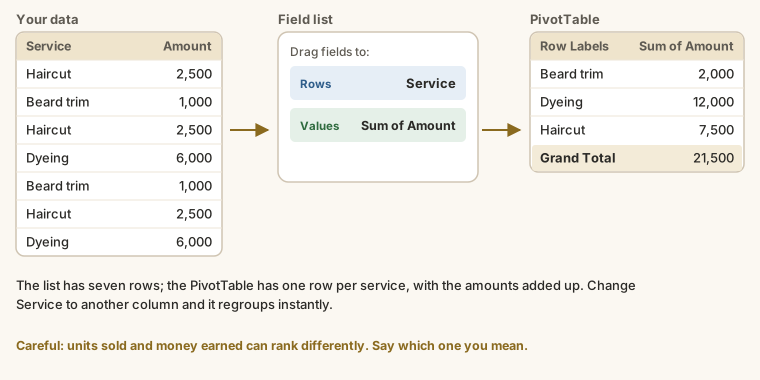
- Click inside the table, then Insert → PivotTable → OK (Google Sheets: Insert → Pivot table → Create).
- In the field list, drag Product to Rows.
- Drag Sales to Values. You'll see Sum of Sales for each product.
- Sort it: click the arrow on Row Labels → More Sort Options → Descending by Sum of Sales.
Now the best seller is at the top. Swap Product for Category in Rows to compare drinks and snacks, or drag Quantity into Values as well to see units next to money.
Show it in a chart
Click inside the PivotTable, then Insert → Recommended Charts and choose a bar or column chart.
- Use bars to compare items (products, categories) and a line to show change over time.
- Avoid 3D charts and pie charts with lots of slices.
- Change the title from "Total" to a sentence that says what the chart shows, like Zobo brings in a third of all sales. That's called an action title. Mrs Okafor shouldn't have to work out the point for herself.
Try it
Use the kiosk data to answer these. Type just the number (₦ and commas are fine).
Practice
What were total Snacks sales over the two weeks?
Practice
What percentage of total sales came from Drinks? One decimal place.
Practice
Build a PivotTable of Sales by Product. Which product brings in the most money?
Practice
Week 1 is 1–5 June and week 2 is 8–12 June. By what percentage did sales grow from week 1 to week 2? One decimal place.
Task
3 minWrite an action title for a bar chart of sales by product: one line that tells Mrs Okafor the main finding, with a number.
Your work is checked for
- Names a product
- Includes a number, amount or share
- One short line (4 to 16 words)
Want to go further? The free Excel for Data Analysis course takes these skills much further, with XLOOKUP, data cleaning and a full sales analysis on a real company dataset.
Earn your badge
Take the module check
Questions on this module. Pass and you earn the Excel Quick Analysis badge, free.
Create a free account to earn the badge