Module 1 · Git & GitHub: From First Commit to Pull Request
What Git and GitHub Are, and Getting Set Up
Understand version control and how Git thinks, tell Git and GitHub apart, meet the terminal, set up Git and a professional GitHub account, and run your first Git commands in a practice terminal built into the page.
About 30 minutes
The problem Git solves
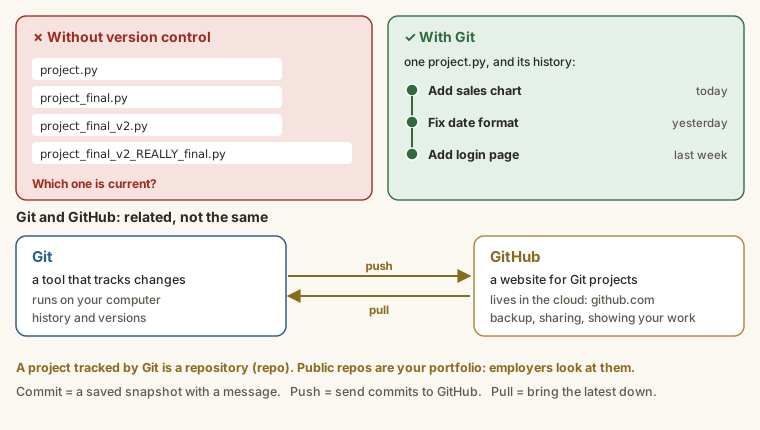
You have probably had a folder like this:
Output
project.py
project_final.py
project_final_v2.py
project_final_v2_REALLY_final.pyWhich one is the real one? What changed between them? If something broke, which version worked? Now imagine five people working on the same project, each with their own copy.
Git fixes this. It is a version control system: it keeps one copy of your project, and records every change you choose to save as a commit, with a message describing it. You can see the full history, compare any two versions, go back when something breaks, and let many people work on the same project without overwriting each other.
Git is used by almost every software team, data team and web agency in the world. Not knowing it is like not knowing how to use email at work.
Git vs GitHub
They are related but different, and beginners often mix them up.
| Git | GitHub | |
|---|---|---|
| What it is | A tool that tracks changes | A website that stores Git projects online |
| Where it runs | On your computer | In the cloud (github.com) |
| What it is for | History and versions | Backup, sharing, teamwork and showing your work |
| Needs internet? | No | Yes |
A project tracked by Git is called a repository, or repo. When you put a copy on GitHub, anyone you allow (or everyone, if it is public) can see it. Other websites do the same job as GitHub, such as GitLab and Bitbucket, and they all use Git underneath.
How Git thinks: three places
To use Git well, you need one picture in your head. Your files live in three places, and Git moves changes between them on your command.
Output
  Working folder        Staging area         Repository
  (your files)    -->   (the next commit) -->  (the history)

edit files git add <file> git commit -m "message"- Working folder. The normal files you open and edit.
- Staging area (also called the index). A waiting room where you choose exactly which changes go into the next commit.
- Repository. The saved history: a chain of commits.
The staging area surprises beginners, and it is worth it. It lets you change five files, but commit them as two clean, separate pieces of work, each with its own message.
What a commit is
A commit is a snapshot of your whole project at one moment. Each one has:
- A unique ID (a short code like
a3f9c21). - A message saying what changed.
- An author and a time.
- A link to its parent, the commit before it. These links make the chain, which is the history.
A branch is just a movable label pointing at a commit. The default one is called main. You will learn branches in lesson 5.
Key words
| Word | Meaning |
|---|---|
| Repository (repo) | A project folder tracked by Git |
| Commit | A saved snapshot, with a message like "Add login page" |
| Stage | Choose changes to go into the next commit |
| Branch | A separate line of work |
| Merge | Combine one branch into another |
| Remote | A copy of the repo somewhere else, usually on GitHub |
| Push / pull | Send commits to a remote / bring commits from it |
| Clone | Download a copy of a repo |
| README | The front page of a repo that explains what it is |
Meet the terminal
Git's real power is in the terminal (also called the command line), a window where you type commands instead of clicking. It looks old-fashioned, and it is faster, works the same everywhere, and is what professionals and every tutorial use. A command is a word, then some options:
Output
git status          the command git, with the sub-command status
ls                  list the files here
cat notes.txt show what is inside a fileOn your computer you open it with Git Bash (Windows, installed with Git), Terminal (Mac), or the terminal in VS Code. You do not need to install anything to learn here. The practice terminal below works the same way, with a small project folder to experiment in.
Try the practice terminal
In this course, you practise real Git commands in a practice terminal built into the page. On the left are the files of a small project, and you can click one to read and edit it. On the right is the terminal. Try these, one at a time, and press Enter after each:
lsto list the filescat notes.txtto read onegit --versionto check Git is therehelpto see which commands the practice terminal knows
Files in your project folder
Type a command below and press Enter. Type help for the commands you can use. Press the up arrow to bring back an earlier command.
Nothing you do here can break anything. If you get lost, press Reset.
Install Git on your computer
When you are ready to use Git for real:
- Go to git-scm.com/downloads and install Git for your system. On Windows, accept the defaults. This also installs Git Bash.
- Open Git Bash (or Terminal) and type
git --version. You should see something likegit version 2.45.0.
Tell Git who you are
Every commit records who made it, so the very first thing to do on a new computer is set your name and email. This only needs doing once:
Shell (bash)
git config --global user.name "Ada Okafor"
git config --global user.email "ada@example.com"Use the same email as your GitHub account, so GitHub links your commits to your profile. Without a name and email, Git refuses to make a commit. Try it yourself in the task below.
Set up your GitHub account
- Go to github.com and sign up with an email you will keep after graduation.
- Choose a professional username, such as
adaeze-okaforortundeanalytics, notcooldude2005. It appears in your links. - Add a profile photo and a one-line bio ("Economics student · learning Python and SQL").
- Turn on two-factor authentication in Settings, then Password and authentication.
Try it
First, tell Git who you are, in the practice terminal. It starts with no name and no email set.
Task
5 minSet your Git name and email with git config --global. Use any name and a realistic email address. You can check them afterwards with git config user.name.
Your repository is checked for
- Your name is set (git config --global user.name)
- Your email is set, and looks like an email address
Files in your project folder
Type a command below and press Enter. Type help for the commands you can use. Press the up arrow to bring back an earlier command.
Practice
Which one is a tool that runs on your computer and records the history of your files: Git or GitHub?
Practice
In Git's three places (working folder, staging area, repository), which one is the "waiting room" where you choose exactly what goes into the next commit? Type its name.
Task
10 minCreate your GitHub account with a professional username, add a photo and a one-line bio, and turn on two-factor authentication. Paste your profile link on the first line and your bio on the second.
Your work is checked for
- Your GitHub profile link
- A professional username (no nicknames or birth years)
- A bio line saying what you study or do
Earn your badge
Take the module check
Questions on this module. Pass and you earn the Git Basics badge, free.
Create a free account to earn the badge