Module 6 · Power BI Fundamentals
Data relationships
Connect tables with one-to-many relationships: cardinality, filter direction, active and inactive relationships, and the star schema of facts and dimensions.
About 15 minutes
The problem
You put region from the customers table and revenue from orders into a bar chart, and every bar shows ₦830.5 million. Power BI doesn't know which orders belong to which region. The tables need a relationship.
The concept
A relationship links two tables through a column they share, usually an ID. Once it exists, a filter on one table reaches the other: choose Lagos in customers, and Power BI counts only Lagos customers' orders. Without it, the two tables don't know about each other.
The parts of a relationship
Double-click a relationship line in Model view and the Edit relationship dialog shows four settings:
| Setting | Means | For Kolanut |
|---|---|---|
| Tables and columns | Which column in each table holds the matching value | orders[customer_id] and customers[customer_id] |
| Cardinality | How many rows on each side can match | Many to one (*:1): many orders, one customer |
| Cross-filter direction | Which way filters flow | Single: from customers to orders |
| Active | Whether Power BI uses it automatically | Yes |
Cardinality
| Cardinality | Means | When |
|---|---|---|
| One-to-many (1:*) | Each value appears once on one side, many times on the other | Almost always: one customer, many orders |
| One-to-one (1:1) | Each value appears once on both sides | Rare; usually a sign the two tables should be one |
| Many-to-many (*:*) | Values repeat on both sides | Avoid while learning; results are easy to misread |
The "one" side must have unique values. customers[customer_id] does: 90 rows, 90 IDs. If Power BI offers only many-to-many when you expected one-to-many, there's a duplicate ID on the side that should be "one". Find it before going further; it's a data problem, not a setting to change.
Cross-filter direction
The small arrow in the middle of the line shows which way filters travel.
- Single (the default): from the one side to the many side. Picking a region filters customers, which filters their orders. This is right almost every time.
- Both: filters travel both ways, so picking a product would also filter the customers list down to those who bought it. Occasionally useful, but with several tables it can make filters take unexpected paths and slow the report. Use it only when you know exactly why.
Active and inactive relationships
Only one active path can exist between two tables. A second relationship between the same tables is created as inactive and drawn as a dashed line. It does nothing unless a DAX formula switches it on with USERELATIONSHIP (for example, an orders table with both an order date and a delivery date, each related to the same date table).
The star schema
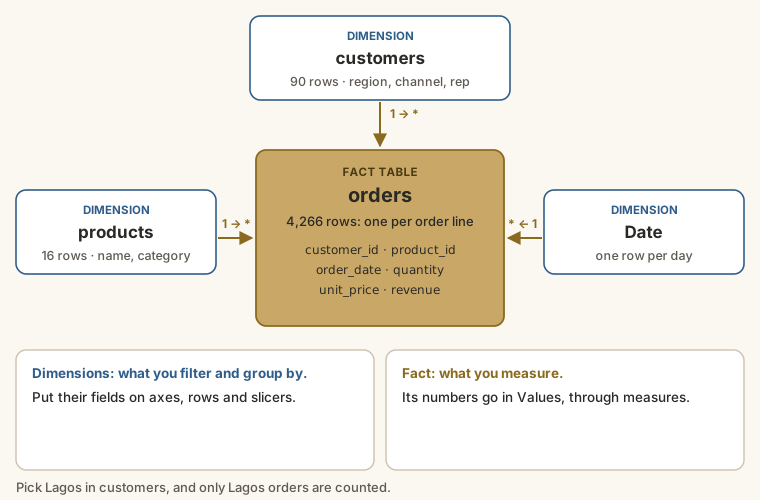
The standard design for Power BI models is the star schema:
| Table type | Holds | Kolanut | Use its fields for |
|---|---|---|---|
| Fact table | Events, with the numbers you add up | orders: 4,266 order lines | Measures in Values |
| Dimension tables | The things you describe, filter and group by | customers, products, and Date (next lesson) | Axes, rows, legends and slicers |
Each dimension relates one-to-many into the fact, so the diagram looks like a star. Two rules follow:
- Group by dimension fields: use
customers[region], not a region column copied into orders. - Measure fact fields: revenue and quantity come from
orders.
Why does Power BI work best this way? Filters always flow one clear way, from small dimension tables into the big fact table. Each fact lives once, and the model stays easy to understand when it grows.
What happens without a relationship
If customers and orders aren't related and you put customers[region] next to orders[revenue], every region shows the same number: the grand total, ₦830.5m. Power BI can't tell which orders belong to which region, so it doesn't filter at all. Identical numbers on every row are the classic sign of a missing or broken relationship.
Example
Here is Kolanut's model in Model view, with the relationships Power BI detected when the tables were loaded:
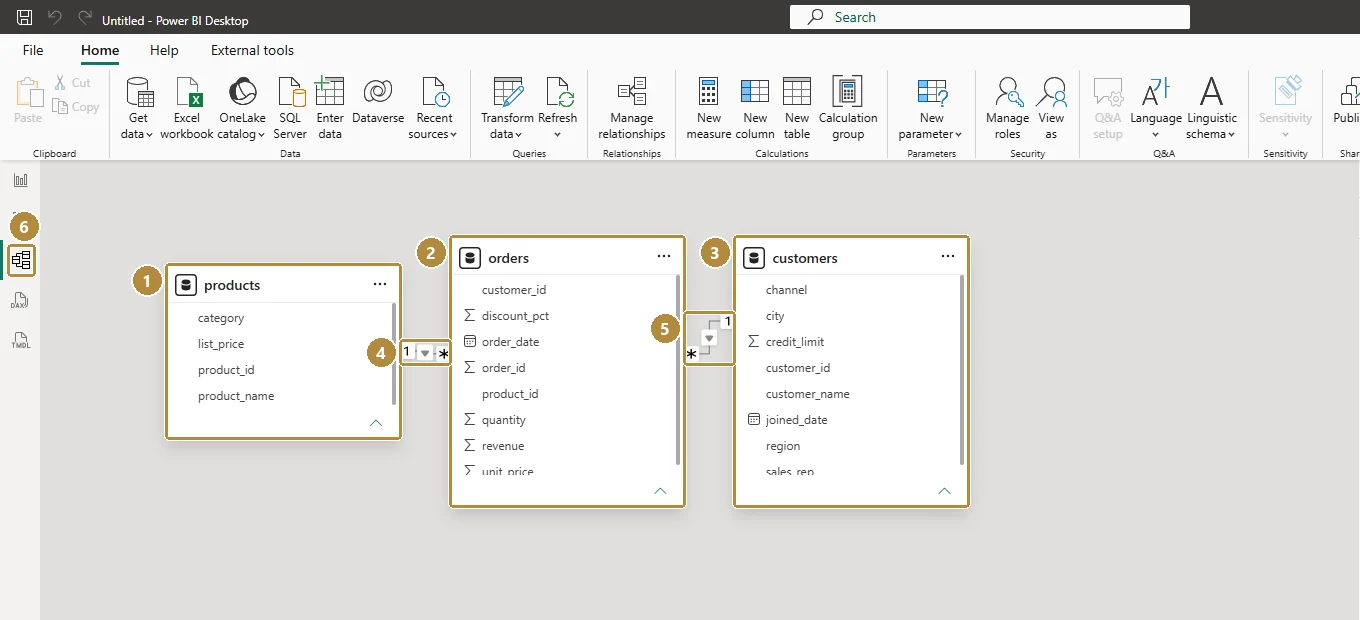
Read each line: the 1 sits beside the table where each ID appears once (products, customers); the * (many) sits beside orders. The small arrow on the line shows the filter direction: from the one side into orders.
With the relationship customers[customer_id] (1) → orders[customer_id] (*):
| region | revenue |
|---|---|
| Lagos | ₦411.2m |
| South West | ₦131.5m |
| North West | ₦81.6m |
| North Central | ₦77.5m |
| South South | ₦68.4m |
| South East | ₦60.3m |
Without it, every row shows ₦830.5m.
The relationship to products works the same way. Put products[category] and customers[region] in the same matrix, and each cell is filtered by both dimensions at once: Lagos and Beverages together come to ₦116,162,310. That's the star schema at work: any combination of dimensions, with no extra formulas.
Walkthrough
- Go to Model view. Power BI may already have created relationships: it auto-detects matching column names on load. Check them rather than trusting them.
- If
customersandordersaren't connected, dragcustomer_idfromcustomersontocustomer_idinorders. - Double-click the line to open Edit relationship. Check: Cardinality Many to one (*:1) from orders to customers; Cross filter direction Single; Make this relationship active ticked.
- Do the same for
products[product_id]→orders[product_id]. - If you merged
categoryinto orders in lesson 4, delete that column now (in Power Query, delete the merge steps) and useproducts[category]instead. - Back in Report view, build a table visual with
customers[region]andorders[revenue]. Each region should show a different number, and the total should be ₦830,541,245. - Test the other relationship: a table with
products[category]andorders[revenue]. Again, different numbers on each row, the same total.
Summary
| Term | Meaning |
|---|---|
| Relationship | A link between two tables through a shared column |
| One-to-many (1:*) | The normal case: unique on one side, repeated on the other |
| Single direction | Filters flow from the one side to the many side |
| Inactive relationship | A dashed line, used only when DAX asks for it |
| Star schema | One fact table in the middle, dimensions around it |
| Same number on every row | Missing or broken relationship |
Practice
Practice
With the relationships in place, what is total revenue from South East customers? (A rounded figure is fine.)
Practice
In the relationship between products and orders, which table is on the one side?
More practice
Optional drills. They don't count towards the certificate, but they're the fastest way to make this lesson stick. Several use a different dataset from the lesson on purpose: if you can do the same thing on unfamiliar data, you've really learned it.
Drill · optional
With customers related to orders, what is total revenue from Kiosk customers?
Drill · optional
Load the legal dataset and relate clients → matters → invoices. What is the total invoiced to Company clients?
Check your understanding
Answer every question to check.