Module 8 · Power BI Fundamentals
DAX fundamentals
How DAX thinks: calculated columns versus measures, filter context and row context, SUMX, DIVIDE, SWITCH, RELATED and variables, with Kolanut's real results.
About 25 minutes
The problem
Dragging revenue into a visual gives "Sum of revenue", which is fine until you need an average per order line, a count of active customers, or a percentage of the total. Those need DAX (Data Analysis Expressions), Power BI's formula language. DAX looks like Excel, but it thinks in columns and filters, not cells.
The concept
DAX (Data Analysis Expressions) is the formula language of Power BI. It looks like Excel: functions, brackets, commas. But Excel formulas point at cells, and DAX formulas work on columns and tables, with the answer depending on what's filtered. That one difference is the key to everything in this lesson and the next.
Writing DAX
Every DAX formula has the same shape: a name, an equals sign, and an expression.
DAX
Revenue = SUM ( orders[revenue] )| Part | Meaning |
|---|---|
Revenue | The name you'll see in the Data pane and in visuals |
SUM ( … ) | A function, with its arguments in brackets |
orders[revenue] | A column: table name, then column name in square brackets |
[Revenue] | A measure, written in square brackets with no table name |
Table names with spaces or special characters need single quotes: 'Date'[Year]. Spaces and line breaks don't matter, so long formulas can be laid out on several lines for readability. Comments start with //.
Calculated columns and measures
DAX can create two different things, and choosing between them is the first decision every time:
| Calculated column | Measure | |
|---|---|---|
| Calculated | Once per row, when data refreshes | On the fly, for whatever the visual is showing |
| Stored | In the table (uses memory) | Not stored |
| Has a value for | Each row | Each cell of a visual |
| Use for | A value you'll filter or group by (size band, age group) | Numbers you aggregate: totals, averages, ratios |
| Example | Size = IF ( orders[quantity] >= 20, "Large", "Small" ) | Revenue = SUM ( orders[revenue] ) |
| Created with | Table tools → New column | Home → New measure |
Rule of thumb: if it goes in the Values well, make it a measure. If it goes on an axis, in rows or in a slicer, it's a column.
Filter context
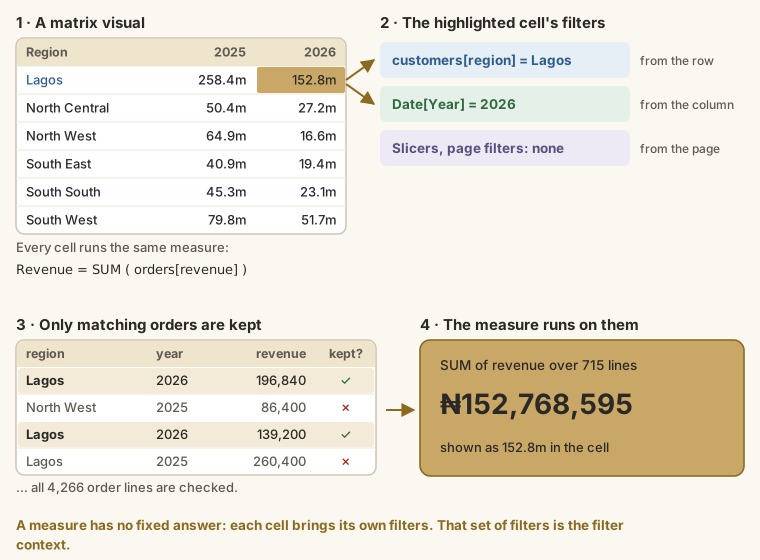
A measure has no fixed answer. In a matrix of revenue by region and year, the measure Revenue is calculated once per cell, each time with different filters:
- the row adds a filter (region = Lagos);
- the column adds a filter (Year = 2026);
- slicers, page filters and report filters add more;
- the total row has fewer filters, so it covers more data.
Together these are the cell's filter context. Power BI keeps only the rows of orders that match, then runs the measure on them. For the Lagos 2026 cell, that's 715 order lines, adding up to ₦152,768,595.
"What is filtered right now?" is the question to ask whenever a DAX number surprises you.
Row context and iterators
A calculated column works one row at a time: orders[quantity] means "the quantity in this row". That's row context.
Functions ending in X (SUMX, AVERAGEX, MAXX, COUNTX) are iterators: they create a row context inside a measure. They go through a table row by row, evaluate an expression for each row, then combine the results:
DAX
SUMX ( <table>, <expression> )

Revenue = SUMX ( orders, orders[quantity] * orders[unit_price] * ( 1 - orders[discount_pct] / 100 ) )This gives ₦830,541,245 in total, the same as the Power Query revenue column plus SUM, without storing the column. SUM ( orders[revenue] ) is really shorthand for SUMX ( orders, orders[revenue] ).
The core functions
Aggregations: summarise a column over the current filter context.
| Function | Returns | Kolanut, all dates |
|---|---|---|
SUM ( orders[revenue] ) | Total | 830,541,245 |
AVERAGE ( orders[revenue] ) | Mean | 194,688.52 |
MIN ( orders[revenue] ) / MAX ( … ) | Smallest / largest | 3,420 / 713,400 |
COUNTROWS ( orders ) | Number of rows in a table | 4,266 |
DISTINCTCOUNT ( orders[customer_id] ) | Number of different values | 90 |
Safe division:
DAX
DIVIDE ( <numerator>, <denominator> [, <alternate result>] )DIVIDE ( [Revenue], [Order Lines] ) returns blank instead of an error when the denominator is 0 or blank. Use it instead of / for every ratio; a visual full of errors because one month had no orders is worse than a blank cell.
Logic:
DAX
IF ( <test>, <value if true> [, <value if false>] )
SWITCH ( TRUE (), <test1>, <value1>, <test2>, <value2>, …, <else> )DAX
Size Band =
SWITCH (
    TRUE (),
    orders[quantity] >= 20, "Large",
    orders[quantity] >= 10, "Medium",
    "Small"
)SWITCH ( TRUE (), … ) works like Excel's IFS: it returns the value for the first test that's true. As a calculated column on orders, it gives 1,032 Large, 1,777 Medium and 1,457 Small lines.
Relationships:
| Function | Used in | Does |
|---|---|---|
RELATED ( products[category] ) | A calculated column on the many side | Fetches the matching value from the one side, like XLOOKUP |
RELATEDTABLE ( orders ) | A calculated column on the one side | Returns the matching rows from the many side |
For example, a calculated column on customers: Order Lines = COUNTROWS ( RELATEDTABLE ( orders ) ) gives each customer's number of order lines.
Variables
Long measures are easier to read with variables. VAR names an intermediate result; RETURN gives the answer:
DAX
Avg Revenue per Line =
VAR TotalRevenue = SUM ( orders[revenue] )
VAR Lines = COUNTROWS ( orders )
RETURN
DIVIDE ( TotalRevenue, Lines )Each variable is calculated once, so variables can also make measures faster.
Formatting and organising measures
- Set each measure's format once (Measure tools → Format): whole number with separators for counts, currency for money, percentage for ratios.
- Keep measures together in a dedicated table (the walkthrough shows how).
- Name them as a reader would:
Revenue,Order Lines,Active Customers. AvoidMeasure 1.
Example
Four measures every sales report needs:
DAX
Revenue = SUM ( orders[revenue] )

Order Lines = COUNTROWS ( orders )

Active Customers = DISTINCTCOUNT ( orders[customer_id] )

Avg Revenue per Line = DIVIDE ( [Revenue], [Order Lines] )Notice the last one uses the others: measures build on measures. Change Revenue once and everything using it follows.
In a matrix with Date[Year] in Rows, 2025 shows:
| Measure | 2025 |
|---|---|
| Revenue | 539,810,790 |
| Order Lines | 2,832 |
| Active Customers | 81 |
| Avg Revenue per Line | 190,611 |
The 2026 row is yours to find in the practice. Note that Active Customers for the two years together is 90, not 81 plus the 2026 figure: customers who ordered in both years are counted once in the total.
A calculated column using a relationship:
DAX
Category = RELATED ( products[category] )Walkthrough
Create a table for your measures: Home → Enter data, name it
_Measures, load it with its one empty column. (The underscore keeps it at the top of the Data pane.)Select
_Measures, then Home → New measure, and type theRevenuemeasure in the formula bar. Press Enter.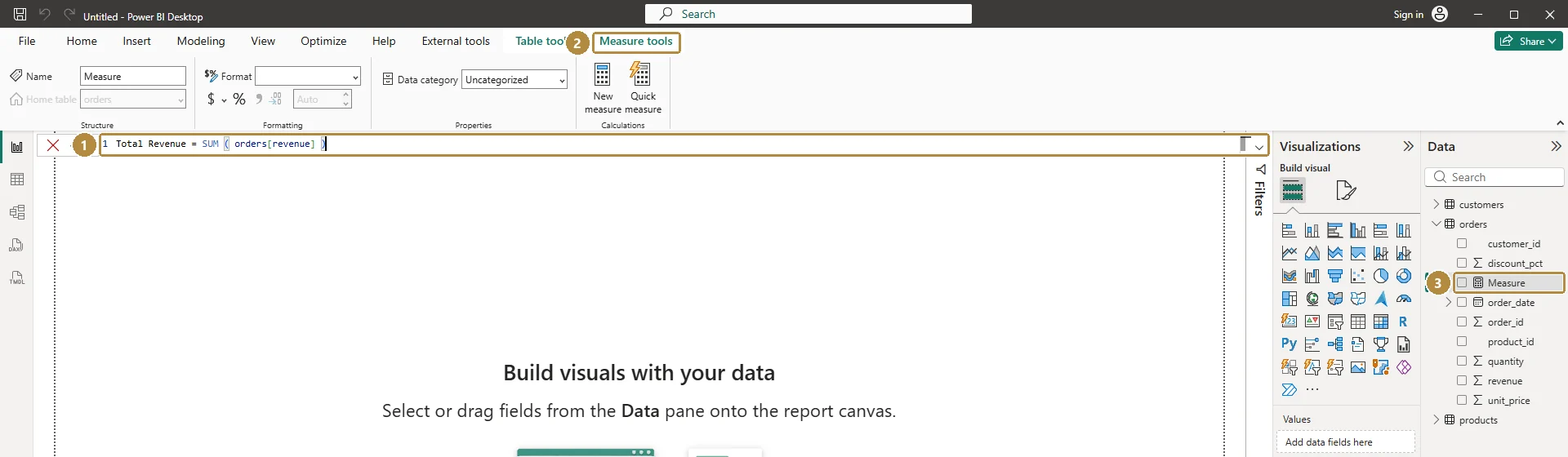
Writing a measure: the formula bar (1) opens under the Measure tools tab (2), and the measure appears in the Data pane with a calculator icon (3).TapClick the image to see it full size. Add
Order Lines,Active CustomersandAvg Revenue per Linethe same way.Format them: select a measure → Measure tools → set format (Whole number with thousands separator for counts; currency for revenue).
Build a Matrix with
Date[Year]in Rows and all four measures in Values. Each number is calculated for its year: that's filter context at work. Check the 2025 row against the table above.Add
customers[region]to Rows under Year. Each number changes again: now two filters apply to every cell.Delete the empty column in
_Measures; the table becomes a measure folder.
Summary
| Term | Meaning |
|---|---|
| Calculated column | Calculated per row, stored; for grouping and filtering |
| Measure | Calculated per cell, on the fly; for numbers in Values |
| Filter context | The filters a cell brings: rows, columns, slicers, page filters |
| Row context | "This row", in a calculated column or an X function |
SUMX and friends | Evaluate an expression per row, then aggregate |
DIVIDE | Division that returns blank instead of an error |
RELATED | Fetch a value from the one side of a relationship |
VAR … RETURN | Name intermediate results in a long formula |
Practice
Practice
What is Avg Revenue per Line for 2026 (January–June)? (A rounded figure is fine.)
Practice
How many order lines were there in Q1 2026 (January–March)?
More practice
Optional drills. They don't count towards the certificate, but they're the fastest way to make this lesson stick. Several use a different dataset from the lesson on purpose: if you can do the same thing on unfamiliar data, you've really learned it.
Drill · optional
Write a measure Total Quantity = SUM(orders[quantity]). How many packs were sold in 2026?
Drill · optional
In the HR data, write Avg Salary = AVERAGE(employees[monthly_salary]). What is it for Managers (job_level)? Round to the nearest naira.
Check your understanding
Answer every question to check.