Module 10 · Power BI Fundamentals
Visualizations
The visuals you'll use most, how to configure and format them, and how visuals interact on a page.
About 15 minutes
The problem
Your model and measures are ready. Now they need to become a page someone can read. Power BI has dozens of visuals; a handful do most of the work, and knowing how they interact (click one bar, and the whole page filters) is what makes a report feel alive.
The concept
The core visuals
| Visual | Best for | Wells to fill |
|---|---|---|
| Card | One headline number | Fields: a measure |
| Clustered bar / column | Comparing categories | Y-axis (category), X-axis (measure) |
| Line chart | Trends over time | X-axis: Date[Year Month] or Date hierarchy; Y-axis: measures |
| Matrix | Cross-tab (like a pivot table) | Rows, Columns, Values |
| Table | Detail lists | Columns |
| Slicer | On-page filtering | Field: a dimension column |
| Line and clustered column | Two measures with different scales | Column y-axis, Line y-axis |
Formatting (Format visual, paintbrush icon): titles, data labels, axis units (Millions), colours. For a single highlighted bar: Format → Bars → Colors → turn on Show all and colour one category.
Conditional formatting in tables and matrices: click the field's drop-down in the Values well → Conditional formatting → Background color / Data bars / Icons.
Interactions. Clicking a data point in one visual cross-filters or cross-highlights the others. Control it: select a visual → Format → Edit interactions, then choose filter, highlight or none on each other visual.
Drill down. With a hierarchy (Year → Quarter → Month) on an axis, the drill arrows at the top of the visual move between levels.
Tooltips. Hovering shows details; add extra measures to the Tooltips well to show more (e.g. YoY % when hovering a region's bar).
Choosing a visual from the question
| The reader asks | Visual | Kolanut |
|---|---|---|
| "How much, in total?" | Card, with a comparison measure nearby | Revenue ₦830.5m |
| "How has it changed?" | Line chart on a date axis | Monthly revenue, this year and last |
| "Which is biggest?" | Bar chart, sorted | Revenue by region |
| "What's the breakdown by two things?" | Matrix | Category by year |
| "Which ones, exactly?" | Table | Customers whose orders fell most |
| "How do two measures relate?" | Scatter chart | Customers: credit limit against revenue |
| "Two measures, different scales, over time" | Line and clustered column | Revenue (columns) and order lines (line) by month |
Pie, donut, gauge and map visuals exist too. Use them rarely: a sorted bar chart compares values more accurately than a pie, and a map is only useful when location itself matters.
Filters at four levels
Besides slicers, the Filters pane filters at different scopes:
| Level | Affects | Example |
|---|---|---|
| Visual | One visual | A top 5 customers bar chart (Filter type: Top N) |
| Page | Every visual on the page | This page shows 2026 only |
| Report (all pages) | Every page | Exclude a test customer everywhere |
| Drillthrough | A detail page, reached by right-clicking a data point | Right-click Lagos → Drill through → Region detail |
Slicers sit on the page where users can see and change them. Filters-pane filters are often set by the report author and can be locked or hidden. A number that looks wrong is often explained by a forgotten filter, so check the Filters pane first.
Filter or highlight?
When a user clicks a bar, other visuals respond in one of two ways:
| Interaction | What the other visual shows | Good for |
|---|---|---|
| Filter | Only the selected data | Cards, tables, line charts: the number simply changes |
| Highlight | All the data, with the selected part dark and the rest pale | Bar and column charts: you see the part against the whole |
| None | No change | A visual that should always show the full picture |
Set them with Format → Edit interactions: select the visual you'll click, then choose the icon above each other visual.
Example
A first report page for Kolanut:
- Top row: three Cards:
Revenue,YoY %,Active Customers. - Left: Line chart:
Date[Year Month]on the X-axis,RevenueandRevenue LYon the Y-axis. - Right: Clustered bar:
customers[region]on the Y-axis,Revenueon the X-axis,YoY %in Tooltips, sorted descending. - Bottom: Matrix:
products[category]in Rows,Date[Year]in Columns,Revenuein Values, with data bars. - Side: Slicers for
customers[channel]andDate[Year].
Click the North West bar and every other visual shows North West only.
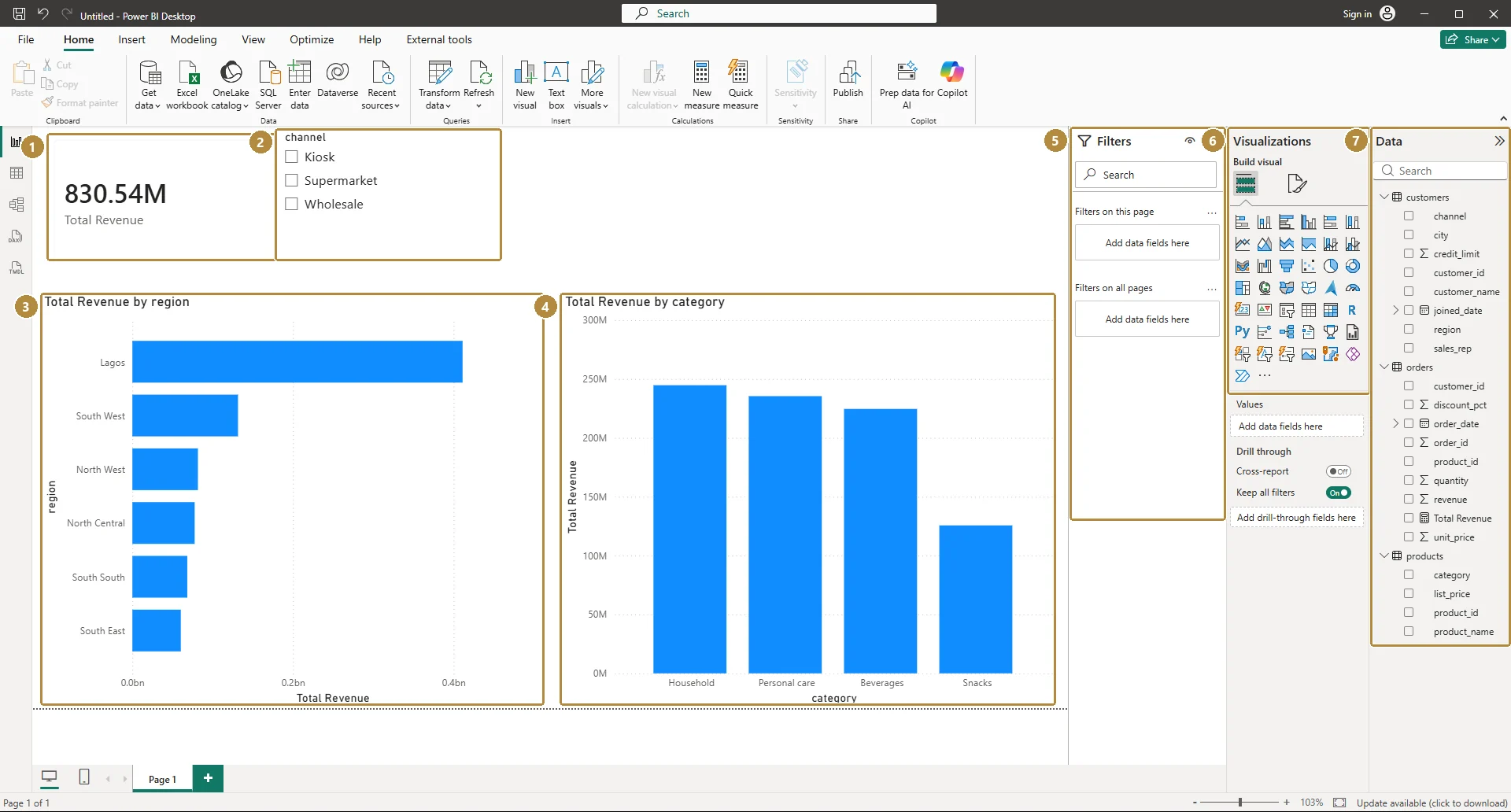
Here's a first version of that page built in Power BI Desktop, with a card, a slicer and two bar charts:
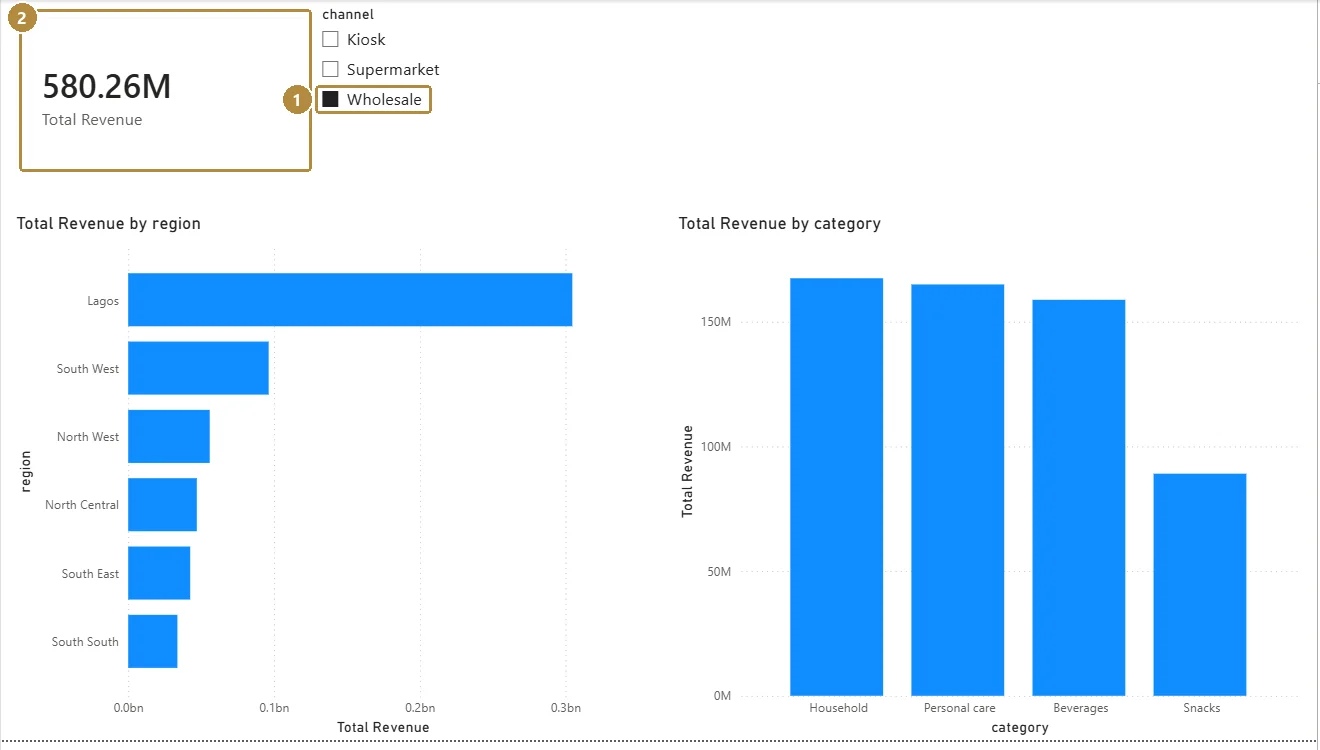
Tick Wholesale in the slicer and every visual on the page recalculates for wholesale customers only:
Walkthrough
- Add the three cards. For each, Format → Callout value → Display units Millions for revenue.
- Add the line chart. If the X-axis shows a hierarchy (Year, Quarter, Month, Day), use
Date[Year Month]instead, or drill down to Month. - Add the region bar chart; sort by Revenue (… menu → Sort axis → Revenue, descending).
- Add the matrix with data bars on Revenue.
- Add slicers; set their style to Tile or Dropdown (Format → Slicer settings).
- Click around. Then select the line chart → Format → Edit interactions and set the region bar chart to filter rather than highlight the line chart.
Practice
Practice
Click North West in the region bar chart with the Year slicer set to 2026. What does the Revenue card show? (A rounded figure is fine.)
Practice
In the category-by-year matrix, what was Snacks revenue in 2025? (A rounded figure is fine.)
More practice
Optional drills. They don't count towards the certificate, but they're the fastest way to make this lesson stick. Several use a different dataset from the lesson on purpose: if you can do the same thing on unfamiliar data, you've really learned it.
Drill · optional
In the category-by-year matrix, what was Household revenue in 2026?
Drill · optional
Add a Channel slicer. With Wholesale selected and the Year slicer on 2025, what does the Revenue card show?
Check your understanding
Answer every question to check.