Module 9 · Excel for Data Analysis
Charts and visualization
Choose the right chart for the question, build line, bar, stacked and combo charts and PivotCharts, fix Excel's defaults, and make tables readable with conditional formatting and sparklines.
About 20 minutes
The problem
The pivot tables show the numbers, but a table of 18 months × 6 regions doesn't jump out at anyone. The sales director needs to see the December peak, the Lagos growth and the North West fall. Excel can chart all of it, but its defaults need work before a chart is fit for a meeting.
The concept
A chart is an argument. It should make one point so clearly that the reader gets it in five seconds. Excel will draw almost anything with two clicks; the skill is choosing the right chart and then removing everything that doesn't help.
Pick the chart from the question
Start from what you want the reader to understand, not from the chart menu.
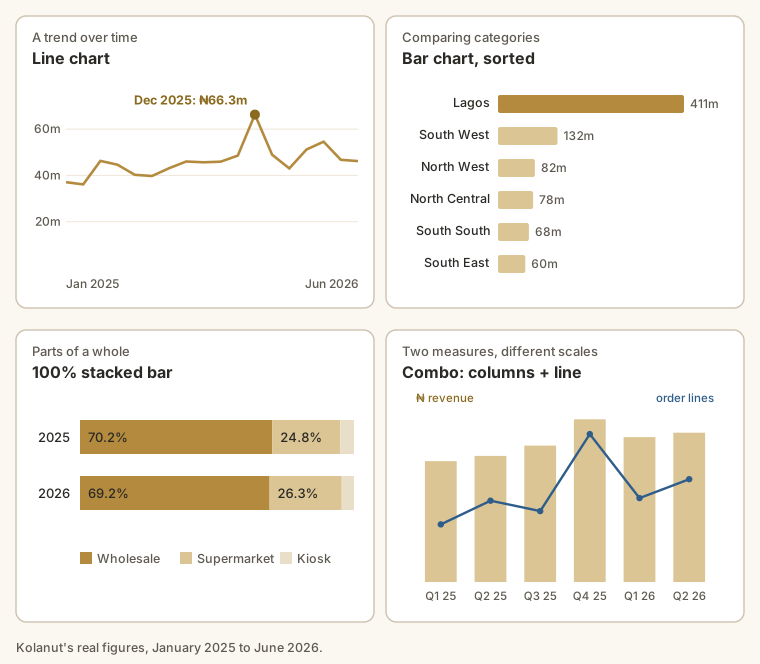
| The question | Chart | Excel menu | Kolanut example |
|---|---|---|---|
| How has it changed over time? | Line | Insert → Line | Revenue per month |
| Which is biggest? How do they compare? | Bar (horizontal) or column | Insert → Bar → Clustered Bar | Revenue per region |
| What share does each part make up? | 100% stacked bar (or a pie, for 2 or 3 parts) | Insert → Bar → 100% Stacked Bar | Channel share per year |
| How do two different measures move together? | Combo: columns plus a line on a second axis | Insert → Combo | Revenue and order lines per quarter |
| Is there a relationship between two numbers? | Scatter | Insert → Scatter | Quantity against revenue per line |
Some rules of thumb:
- Line charts are for time. Months, quarters, years along the bottom, in order. Don't use a line to join categories such as regions; the line suggests a trend that isn't there.
- Horizontal bars for names. Region and product names fit on the left of a bar chart; on a column chart they're squashed or turned sideways.
- Pies only for a few parts. With more than three or four slices, nobody can compare them. A sorted bar chart does the same job better.
- Avoid 3D, shadows and pictures in bars. They distort the sizes your reader is trying to compare.
Making a chart
You can chart a normal range, a Table, or a pivot table.
- Select the data, including the headers: for example the two columns region and revenue of a small summary.
- Insert → choose the chart. Insert → Recommended Charts shows previews if you're unsure.
- The chart appears floating on the sheet. Drag it into place; drag a corner to resize.
When a chart is selected, two extra ribbon tabs appear: Chart Design (chart type, data, styles) and Format (colours and lines of the part you've selected). The + button beside the chart adds or removes elements: titles, labels, gridlines, legend.
Shortcut: select the data and press Alt + F1 for an instant default chart on the same sheet, or F11 for one on its own sheet.
PivotCharts
A PivotChart is drawn from a pivot table and stays linked to it. Filter, slice or re-sort the pivot and the chart follows. Click inside a pivot → PivotTable Analyze → PivotChart.
PivotCharts show grey field buttons on the chart. They're useful while you build, but clutter a finished chart: right-click one → Hide All Field Buttons on Chart.
Parts of a chart
| Part | What it is | Usually |
|---|---|---|
| Chart title | Text at the top | State the finding |
| Axis | The scales: horizontal (categories) and vertical (values) | Keep, but tidy the numbers |
| Axis titles | Labels on the axes | Only if the units aren't obvious |
| Gridlines | Lines across the plot area | Light grey, or remove |
| Legend | Key to the colours | Remove for a single series |
| Data labels | The value printed on a point or bar | Label only the points that matter |
Click any part to select it, then press Ctrl + 1 to open its Format pane.
Fix the defaults, every time
Excel's default chart is a starting point. Five changes turn it into something fit for a meeting:
- A title that states the finding. Not "Sum of revenue by month" but "December is our biggest month by far". Click the title and type.
- Delete what doesn't help: the legend for a single series, heavy gridlines, field buttons on PivotCharts.
- Readable numbers. Double-click the vertical axis → Display units: Millions and tick Show display units label. "60" with "Millions" beats "60,000,000".
- Bars start at zero. Excel does this for bar charts, but check if you've changed the axis: a bar that starts at ₦50m makes small differences look huge.
- One colour, one accent. Make every bar the same calm colour, then click one bar twice to select just it and give it a strong colour: the one you're talking about.
And sort bars largest to smallest (sort the pivot or the data, and the chart follows), unless the categories have a natural order, such as months or size bands.
Combo charts and the secondary axis
Revenue is in hundreds of millions; order lines are in hundreds. On one axis, the lines would be flat along the bottom. A combo chart gives the second measure its own axis on the right:
- Make a summary with quarter, revenue and order lines.
- Insert → Combo → Clustered Column - Line on Secondary Axis.
- Label both axes clearly, so nobody reads the line against the wrong scale.
Use combos sparingly. Two axes make it easy to suggest a relationship that isn't there, just by choosing the scales.
Conditional formatting: tables that show patterns
Sometimes the table is the right output, and you just need the pattern to jump out. Home → Conditional Formatting:
| Option | Does | Good for |
|---|---|---|
| Data Bars | A small bar inside each cell | Comparing values in a column |
| Color Scales | Shades cells from low to high | Spotting highs and lows in a grid, such as region × month |
| Icon Sets | Arrows or traffic lights | Sparingly: status columns |
| Highlight Cells Rules | Colours cells that meet a rule, e.g. Greater Than | Flagging exceptions, such as negative growth |
| Top/Bottom Rules | Colours the top or bottom N or % | The top 10 customers |
Conditional formatting updates as the numbers change, so a weekly report flags its own problems.
Sparklines
A sparkline is a tiny chart inside one cell: one trend per row. With a region-by-month pivot, a column of sparklines shows each region's shape at a glance.
- Select the empty cells where the sparklines will go, one per row.
- Insert → Sparklines → Line.
- Data Range: the monthly figures for those rows. OK.
- On the Sparkline tab, tick High Point to mark each region's best month.
Example
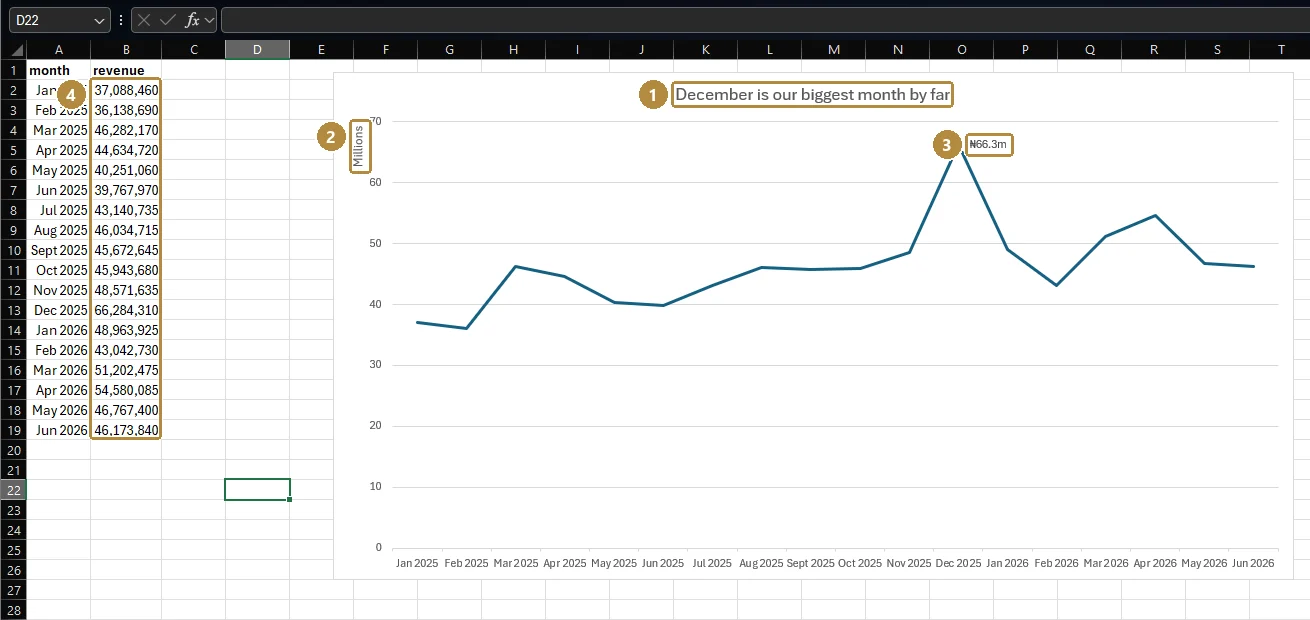
Monthly revenue line chart. A pivot with order_date grouped into Years and Months in Rows and revenue in Values, then PivotChart → Line. The chart shows ₦36m to ₦49m a month through most of 2025, a spike to ₦66.3m in December 2025, then a higher base of ₦43m to ₦55m a month in 2026, after prices rose in January (malt drink went from ₦13,200 to ₦14,800 a pack).
The finding for the title: "December is our biggest month by far".
Revenue by category for December. category in Rows, revenue in Values, order_date filtered to December 2025, sorted largest to smallest, as a clustered bar:
| Category | December 2025 revenue |
|---|---|
| Household | 21,026,400 |
| Beverages | 18,834,090 |
| Personal care | 18,297,540 |
| Snacks | 8,126,280 |
A title such as "Household led December; Snacks trailed at ₦8.1m" tells the reader what to see.
Channel share by year. A 100% stacked bar of channel revenue for 2025 and 2026 shows how steady the mix is: Wholesale 70.2% then 69.2%, Supermarket 24.8% then 26.3%, Kiosk 5.0% then 4.5%. Supermarkets are slowly gaining share. A 100% stacked bar makes that easy to see; two pies side by side would not.
Walkthrough
- Build the monthly pivot described above:
order_datein Rows grouped by Months and Years,revenuein Values. - Click inside it → PivotTable Analyze → PivotChart → Line → OK.
- Right-click a field button on the chart → Hide All Field Buttons on Chart.
- Click the legend → Delete (one series doesn't need one).
- Double-click the vertical axis → Display units: Millions; tick Show display units label.
- Click the gridlines → Ctrl + 1 → make them a light grey, or delete them.
- Click the chart title and write the finding.
- Click the December 2025 point twice (to select just that point) → right-click → Add Data Label.
The result, built on Kolanut's monthly revenue:
- Then, for a regional table, select the revenue column → Home → Conditional Formatting → Data Bars → Solid Fill. Lagos's bar dwarfs the rest, which is exactly the point.
Shortcuts for charts
| Keys | Does |
|---|---|
| Alt + F1 | Insert the default chart next to the selected data |
| F11 | Insert a chart on its own sheet |
| Ctrl + 1 | Open the Format pane for the selected chart element |
| Alt, N, R | Recommended Charts |
Summary
| Need | Use |
|---|---|
| A trend over time | Line chart |
| Compare categories | Sorted horizontal bar chart |
| Share of a whole | 100% stacked bar (pie only for 2 or 3 parts) |
| Two measures with different scales | Combo with a secondary axis, sparingly |
| A chart that follows the pivot | PivotChart |
| A finished chart | Finding as title, no clutter, millions, one accent colour |
| Patterns in a table | Conditional formatting: data bars, colour scales |
| A trend per row | Sparklines |
Practice
Practice
Which product category had the highest revenue in December 2025?
Practice
Looking only at 2026, which month had the highest revenue? (Just the month name.)
More practice
Optional drills. They don't count towards the certificate, but they're the fastest way to make this lesson stick. Several use a different dataset from the lesson on purpose: if you can do the same thing on unfamiliar data, you've really learned it.
Drill · optional
Chart revenue by region for 2025 as a bar chart. Which region is the smallest bar?
Drill · optional
Chart the number of court hearings per month in the legal hearings.csv (a column chart of hearings by month). How many hearings fall in March 2026?
Check your understanding
Answer every question to check.