Module 6 · Excel for Data Analysis
XLOOKUP
Bring details from one table into another with XLOOKUP, put values into bands, spot why a lookup fails, and read VLOOKUP and INDEX/MATCH in older files.
About 20 minutes
The problem
The director asks: "How much did we sell in Lagos? And how much in Beverages?" The orders table has customer_id and product_id, but no region and no category. Those live in customers.csv and products.csv. You need to bring them across, row by row. That's a lookup.
The concept
Real data is split across tables, and for good reason. Kolanut has 90 customers and 4,266 order lines. Writing "Alhaji Musa Wholesale, Lagos, Wholesale, Tolu Adeyemi" on every one of that customer's lines would repeat the same facts hundreds of times, and a change of sales rep would mean editing hundreds of rows. So the orders keep only a key, customer_id, and the details live once, in Customers.
| Table | One row per | Key column | Useful details |
|---|---|---|---|
Orders | order line (4,266) | order_id | customer_id, product_id, quantity, price |
Customers | customer (90) | customer_id | name, channel, region, city, sales rep |
Products | product (16) | product_id | name, category, list price |
A lookup goes the other way: for each order line, take its customer_id, find that customer in Customers, and bring back the detail you need. It's the Excel version of a SQL JOIN.
XLOOKUP
Excel formula
=XLOOKUP(lookup_value, lookup_array, return_array, [if_not_found], [match_mode], [search_mode])| Argument | Meaning | In our example |
|---|---|---|
lookup_value | What you're looking for | This order's [@customer_id] |
lookup_array | The column to search in | Customers[customer_id] |
return_array | The column to bring back from | Customers[region] |
if_not_found | Optional: what to show if there's no match | "Not found" |
match_mode | Optional: 0 exact (default), -1 exact or next smaller, 1 exact or next larger, 2 wildcard | (leave out) |
search_mode | Optional: 1 first to last (default), -1 last to first | (leave out) |
Most of the time you only need the first three or four.
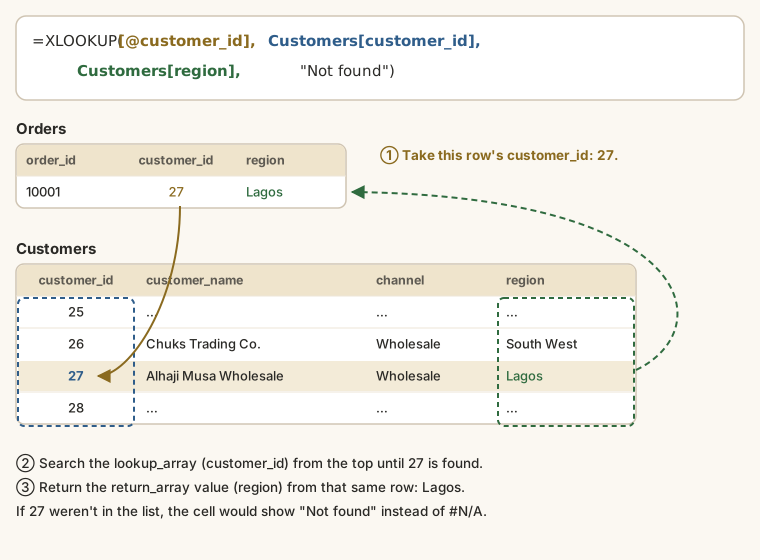
Excel formula
=XLOOKUP([@customer_id], Customers[customer_id], Customers[region], "Not found")Read it aloud as: "Take this row's customer ID, find it in the Customers ID column, and give me the region on that row. If you can't find it, say Not found."
Order 10001 is for customer 27. Customer 27 is Alhaji Musa Wholesale, in Lagos, so the cell shows Lagos.
More examples
| You want | Formula | Order 10001 gives |
|---|---|---|
| Customer's name | =XLOOKUP([@customer_id], Customers[customer_id], Customers[customer_name]) | Alhaji Musa Wholesale |
| Customer's channel | =XLOOKUP([@customer_id], Customers[customer_id], Customers[channel]) | Wholesale |
| Product's name | =XLOOKUP([@product_id], Products[product_id], Products[product_name]) | Orange juice 1L (12) |
| Product's category | =XLOOKUP([@product_id], Products[product_id], Products[category]) | Beverages |
| Product's list price | =XLOOKUP([@product_id], Products[product_id], Products[list_price]) | 20,800 |
That last one is interesting: product 3's list price is ₦20,800, but order 10001 was charged ₦18,600 per pack. Comparing the two is how you'd find out how much below list price the sales team sells.
The lookup value doesn't have to come from the same row. To find one customer by hand, type the ID in a cell (say K2) and look it up:
Excel formula
=XLOOKUP(K2, Customers[customer_id], Customers[customer_name], "No such customer")With 42 in K2, it shows Divine Superstore Uyo. With 999, it shows No such customer.
When there's no match: #N/A
Without if_not_found, a failed lookup shows #N/A. That's not always bad: it tells you something is missing. The common causes:
| Cause | Example | Fix |
|---|---|---|
| The ID really isn't there | A new customer not yet added to Customers | Add the customer, or show "Not found" |
| Number stored as text | 27 in one table, "27" (left-aligned) in the other | Convert with Data → Text to Columns → Finish, or =VALUE() |
| Extra spaces | "Lagos " with a trailing space | Clean with TRIM (lesson 7) |
| Wrong column | Searching names when you meant IDs | Check the lookup_array |
Duplicates: the silent problem
XLOOKUP returns the first match it finds. If the lookup table has the same ID twice (for example, a customer exported twice with different regions), you'll get the first one and no warning.
Check the key column is unique before you rely on it:
Excel formula
=COUNTA(Customers[customer_id]) = COUNTA(UNIQUE(Customers[customer_id]))TRUE means every ID appears once. For Kolanut's Customers it's TRUE: 90 rows, 90 different IDs. The messy export in the next lesson is a different story.
Approximate match: putting values into bands
Lookups aren't only for IDs. With match_mode set to -1 ("exact match or the next smaller value"), XLOOKUP puts a number into a band. Make a small table called Bands, sorted by its lower limit:
| from | band |
|---|---|
| 0 | Under ₦50k |
| 50,000 | ₦50k to ₦200k |
| 200,000 | ₦200k to ₦500k |
| 500,000 | ₦500k and over |
Excel formula
=XLOOKUP([@revenue], Bands[from], Bands[band], , -1)A line worth ₦260,400 has no exact match in from, so XLOOKUP takes the next smaller value, 200,000, and returns ₦200k to ₦500k. (The two commas leave if_not_found empty.)
Across all order lines: 614 under ₦50k, 1,891 from ₦50k to ₦200k, 1,599 from ₦200k to ₦500k, and 162 of ₦500k and over.
This is often neater than a long IFS: to change the bands, you edit the little table, not the formula.
VLOOKUP: the older way
You'll meet VLOOKUP in almost every workbook built before 2020.
Excel formula
=VLOOKUP(lookup_value, table_array, col_index_num, [range_lookup])
=VLOOKUP(C2, Customers!A:H, 4, FALSE)| Argument | Meaning |
|---|---|
lookup_value | What you're looking for |
table_array | The whole lookup table; the ID must be its first column |
col_index_num | Which column of that table to return, counted from the left: 4 is region |
range_lookup | FALSE for an exact match. Always type FALSE. |
It works, but it has three traps:
- The default is approximate. Leave out
FALSEand VLOOKUP assumes the table is sorted and returns the nearest value, often the wrong customer, with no error. - The column number is fragile. Insert a column in
Customersand4now points at a different column. Every result changes, silently. - It only looks right. The ID has to be the first column, so you can't look up an ID from a name.
XLOOKUP fixes all three, which is why it's the one to learn first.
INDEX and MATCH
Before XLOOKUP, careful analysts used INDEX with MATCH. It still works in every version of Excel and in Google Sheets.
Excel formula
=INDEX(return_range, MATCH(lookup_value, lookup_range, 0))
=INDEX(Customers[region], MATCH([@customer_id], Customers[customer_id], 0))It's two functions working together:
MATCH(27, Customers[customer_id], 0)finds which row 27 is on:27(customer 27 is the 27th row). The0means exact match.INDEX(Customers[region], 27)returns the 27th value of the region column:Lagos.
Which one to use
| XLOOKUP | VLOOKUP | INDEX/MATCH | |
|---|---|---|---|
| Excel version | 365, 2021 and later | All | All |
| Google Sheets | Yes | Yes | Yes |
| Exact match by default | Yes | No | With 0 |
| Survives inserted columns | Yes | No | Yes |
| Can look left | Yes | No | Yes |
| Built-in "not found" text | Yes | No (wrap in IFERROR) | No (wrap in IFERROR) |
Write XLOOKUP. Read the other two when you inherit a workbook, and if a file has to open in Excel 2016 or earlier, use INDEX/MATCH.
Example
Which region brings in the most revenue?
Once each order line has a region column from XLOOKUP, SUMIFS from lesson 5 does the rest. Type the six region names in K2:K7 and in L2:
Excel formula
=SUMIFS(Orders[revenue], Orders[region], K2)| Region | Revenue |
|---|---|
| Lagos | 411,162,300 |
| South West | 131,536,985 |
| North West | 81,581,325 |
| North Central | 77,540,720 |
| South South | 68,403,230 |
| South East | 60,316,685 |
| Total | 830,541,245 |
The total matches the grand total from lesson 4, so no line was lost or double-counted. Lagos alone is just under half of all revenue.
The same pattern with a category column:
| Category | Revenue |
|---|---|
| Household | 244,769,040 |
| Personal care | 235,483,370 |
| Beverages | 224,612,360 |
| Snacks | 125,676,475 |
After the walkthrough below, your Orders table will look like this:
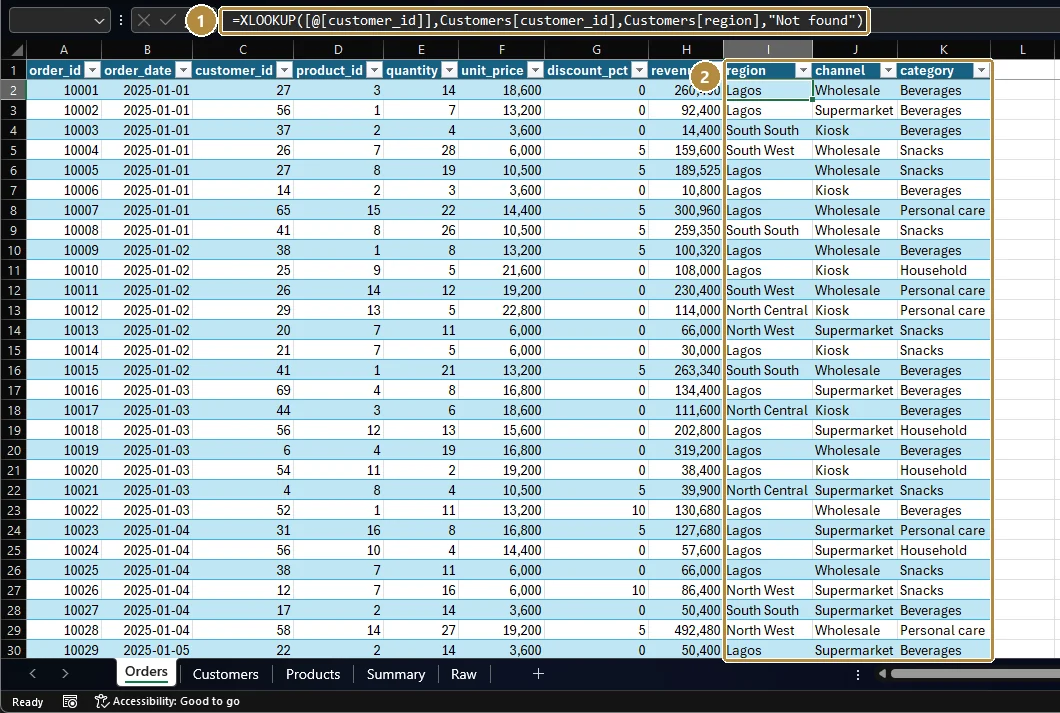
Walkthrough
Load the lookup tables. In the same workbook as
Orders, loadcustomers.csvandproducts.csv(Data → From Text/CSV, as in lesson 2). Click in each, press Ctrl + T, and name themCustomersandProducts(Table Design → Table Name).Check the keys are unique. On any spare cell:
=COUNTA(Customers[customer_id]) = COUNTA(UNIQUE(Customers[customer_id])). It should sayTRUE. Do the same forProducts[product_id].Add region. In the first empty column of
Orders, type the headerregion, then in the first row:Excel formula
=XLOOKUP([@customer_id], Customers[customer_id], Customers[region], "Not found")The table fills it down every row.
Add channel and category the same way, returning
Customers[channel]andProducts[category](looking up[@product_id]inProducts[product_id]).Check for misses. Filter each new column: there should be no "Not found".
Use them. Total Lagos revenue with
=SUMIFS(Orders[revenue], Orders[region], "Lagos"), and check you get ₦411,162,300.Combine two lookups. Lagos revenue from Beverages only:
Excel formula
=SUMIFS(Orders[revenue], Orders[region], "Lagos", Orders[category], "Beverages")That's ₦116,162,310.
Summary
| Need | Use |
|---|---|
| Bring a detail from another table | XLOOKUP(key, Other[key], Other[detail], "Not found") |
| Put numbers into bands | XLOOKUP(value, Bands[from], Bands[band], , -1) |
| Check a key column is unique | COUNTA(col) = COUNTA(UNIQUE(col)) |
| Read an older workbook | VLOOKUP(..., FALSE) or INDEX(..., MATCH(..., 0)) |
| Find why a lookup fails | Look for missing IDs, numbers stored as text, and extra spaces |
Practice
Practice
What is Kolanut's total revenue from customers in the Lagos region? (A rounded figure is fine.)
Practice
What is total revenue from the Beverages category? (A rounded figure is fine.)
Practice
What is the name of customer 42?
More practice
Optional drills. They don't count towards the certificate, but they're the fastest way to make this lesson stick. Several use a different dataset from the lesson on purpose: if you can do the same thing on unfamiliar data, you've really learned it.
Drill · optional
Bring each product's category into the orders table with XLOOKUP. What is total revenue from the Household category?
Drill · optional
In the legal dataset, bring each client's client_type into matters.csv with XLOOKUP. How many matters belong to Individual clients?
Drill · optional
What is Kolanut's total revenue from Supermarket customers? (Look up each order's channel from customers.csv.)
Check your understanding
Answer every question to check.