Module 2 · Excel for Data Analysis
Working with data
Import a CSV safely, check data types, and add your first calculated column to a Table.
About 20 minutes
The problem
The managing director wants one number to start: Kolanut's total revenue since January 2025. The orders file has quantity, price and discount on each line, but no revenue column. You'll add one. Before that, the file has to come into Excel correctly.
The concept
What a CSV file is
Most data reaches an analyst as a CSV file: comma-separated values. It's plain text, one row per line, with commas between the columns. Open orders.csv in Notepad and you see exactly this:
Output
order_id,order_date,customer_id,product_id,quantity,unit_price,discount_pct
10001,2025-01-01,27,3,14,18600,0
10002,2025-01-01,56,1,7,13200,0
10003,2025-01-01,37,2,4,3600,0- The first line is the header: the column names.
- Each following line is one record: here, one product on one order.
- A value containing a comma is wrapped in quotes:
"2,050,000".
A CSV holds only values. There are no formulas, no formatting, no column widths, no multiple sheets. Every system can write one, which is why they're everywhere; and because it's just text, the program that opens it has to guess what each value is. That guess is where problems start.
Two ways to open a CSV
| Method | What happens | Use when |
|---|---|---|
| Double-click the file | Excel guesses every column's type, instantly | Quick look only |
| Data → From Text/CSV | Shows a preview, lets you check types, loads a Table | Real work |
Excel's guesses can go wrong: codes with leading zeros lose them (007 becomes 7), long numbers turn into 1.2E+15, and day-first dates can be read as month-first. Here is what happened when Kolanut's messy customer export was opened by double-clicking:
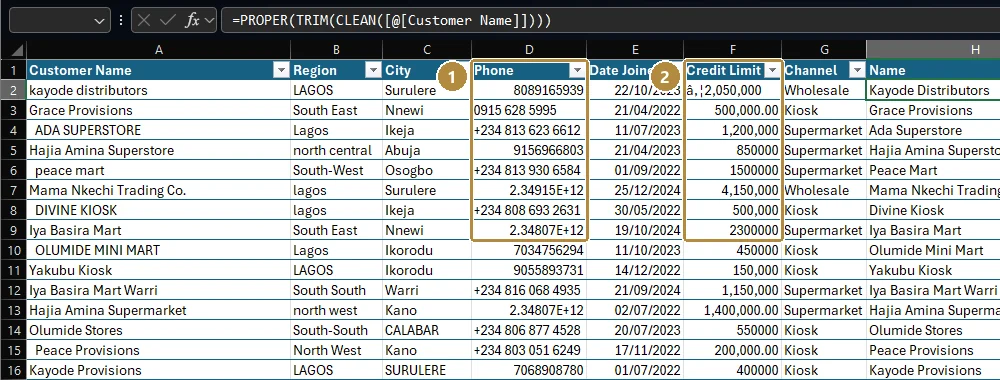
- Phone lost its leading zero (
08089165939became8089165939), and numbers in international format became2.34915E+12. Those digits are gone for good once you save. - Credit Limit shows
₦2,050,000: the₦sign was read with the wrong text encoding, so the column can't be turned into numbers.
Importing through Data → From Text/CSV lets you catch these before they spread.
Check the data types
After loading, check that each column came in as the right type. Click a cell and look at Home → Number Format (the drop-down in the Number group):
| Column | Should be | Shows as | If it's wrong |
|---|---|---|---|
order_id, customer_id, product_id | Number (or text, for codes with leading zeros) | 10001 | Fine either way, as long as both tables match |
order_date | Date | 01/01/2025 or 2025-01-01 | Left-aligned dates are text: re-import (lesson 7) |
quantity, unit_price, discount_pct | Number | 14, 18600, 0 | Left-aligned numbers are text |
A quick test for a whole column: select it and look at the status bar. If it shows Sum, the cells are numbers; if it only shows Count, they're text.
Number formats
A cell's value is what's stored; its format is how it's shown. 0.19 formatted as a percentage shows 19%. Formatting never changes the value, so rounding a display to 0 decimals doesn't round the number used in calculations.
Open the full list with Ctrl + 1 (Format Cells) → Number tab:
| Format | 260400 shows as | Use for |
|---|---|---|
| General | 260400 | The default: Excel decides |
| Number, 0 decimals, 1000 separator | 260,400 | Money in reports, counts |
| Currency (₦) | ₦260,400.00 | Invoices, where the symbol helps |
| Percentage | 26040000% | Only for ratios such as 0.19 → 19% |
| Date | 12-Dec-2612 | Only for real dates! |
| Text | 260400, left-aligned | Codes and phone numbers, not amounts |
The last rows show why formats matter: the same number shown as a date or a percentage is nonsense. If a column suddenly displays dates or ####, check its format before you check the data. (#### just means the column is too narrow: double-click the column border to widen it.)
Calculated columns in a Table
Type a formula once in a Table column and Excel fills it down for every row, using structured references: [@quantity] means "the quantity in this row".
| Reference | Means |
|---|---|
[@quantity] | The quantity in this row |
Orders[quantity] | The whole quantity column of the Orders table |
Orders[@quantity] | This row's quantity, written from outside the table |
Orders | All the data rows of the table |
Kolanut revenue for one order line:
Excel formula
=[@quantity]*[@unit_price]*(1-[@discount_pct]/100)The discount is stored as a whole number (5 means 5%), so it's divided by 100. 1 - 5/100 is 0.95: the customer pays 95% of the full price.
Outside a Table, you write the formula in the first row with ordinary references, =E2*F2*(1-G2/100), and copy it down by double-clicking the fill handle: the small square at the bottom right of the selected cell. Excel copies it down as far as the column next to it has data.
Saving your work
| Save as | Keeps | Use for |
|---|---|---|
| Excel Workbook (.xlsx) | Formulas, formatting, Tables, several sheets, charts | Your working file. Always. |
| CSV (.csv) | Values of the current sheet only | Sending data to another system |
If you open a CSV, add formulas, and press Ctrl + S, Excel asks whether to keep the CSV format. Choose Save As → Excel Workbook. Saving as CSV silently throws away every formula, every other sheet and all formatting.
Example
Order line 10001: 14 packs × ₦18,600 × (1 − 0 ÷ 100) = ₦260,400.
A 5% discount line of 20 packs at ₦13,200: 20 × 13,200 × (1 − 5 ÷ 100) = 264,000 × 0.95 = ₦250,800.
Walkthrough
In a new workbook, go to Data → From Text/CSV (keyboard: Alt, A, F, T) and choose
orders.csv. In some versions it's under Data → Get Data → From File → From Text/CSV.Excel shows a preview:
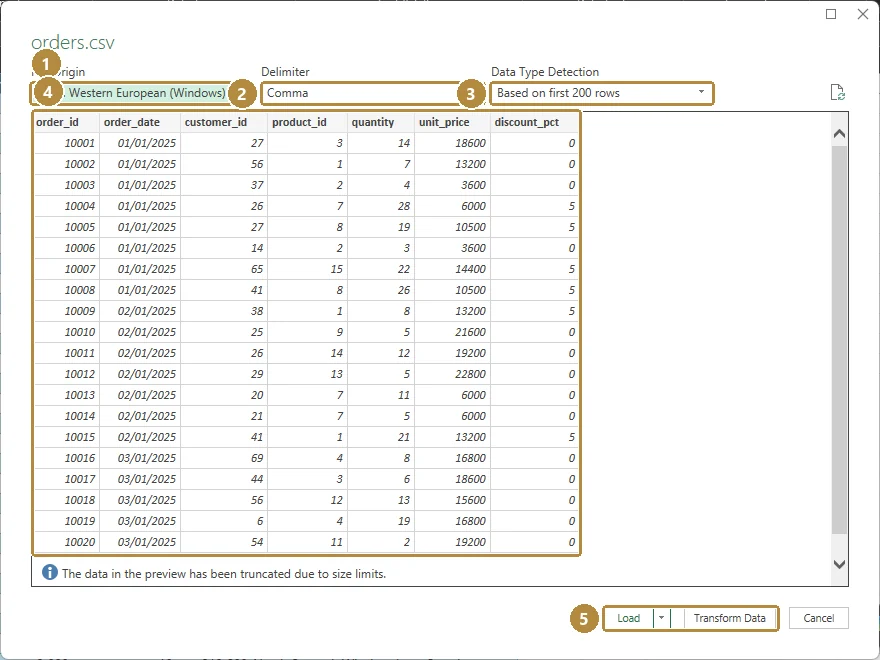
The import preview. Nothing is loaded until you click Load.TapClick the image to see it full size. - File Origin: the text encoding. For files containing
₦or other special characters choose 65001: Unicode (UTF-8). - Delimiter: what separates columns. CSV means Comma.
- Data Type Detection: how Excel decides column types.
- The preview. Check that
order_dateshows dates and the numbers are numbers (right-aligned). The dates appear in your computer's date format; here, day first. - Load puts the data on a new sheet as a Table. Transform Data opens Power Query to clean it first.
Click Load.
- File Origin: the text encoding. For files containing
Rename the sheet
Ordersand the TableOrders(Table Design → Table Name).In the first empty column to the right, type the header
revenuein row 1.In row 2 of that column type the formula above and press Enter. Excel fills it down all 4,266 rows.
Select the column and format it: Home → Number → Comma Style, and reduce decimals to 0.
View → Freeze Panes → Freeze Top Row, so the headers stay visible as you scroll.
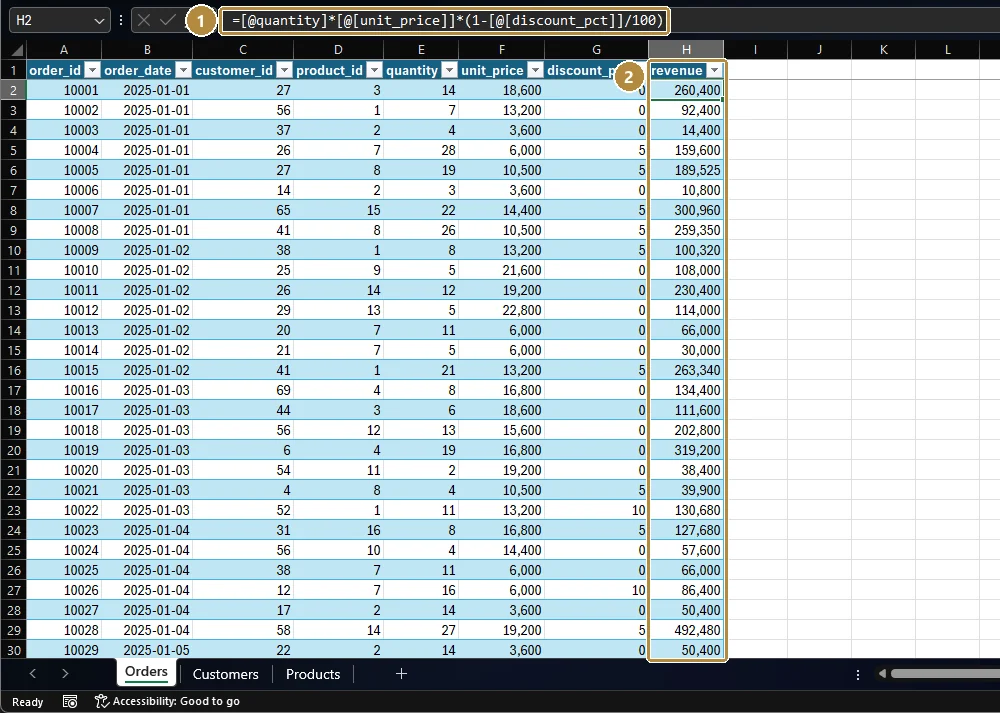
Excel may display the formula as =[@quantity]*[@[unit_price]]*(1-[@[discount_pct]]/100), with extra brackets around column names that contain an underscore. Both forms mean exactly the same thing.
To get the total, click in any empty cell and type:
Excel formula
=SUM(Orders[revenue])Orders[revenue] means "the whole revenue column of the Orders table". It stays correct if rows are added.
Practice
Practice
What is Kolanut's total revenue across all order lines (January 2025 to June 2026)? (A rounded figure is fine.)
Practice
And before discounts? Add a column for gross value (quantity × unit_price) and total it.
More practice
Optional drills. They don't count towards the certificate, but they're the fastest way to make this lesson stick. Several use a different dataset from the lesson on purpose: if you can do the same thing on unfamiliar data, you've really learned it.
Drill · optional
Turn the HR employees.csv into a Table and add a calculated column annual_salary = monthly_salary × 12. What is the total annual salary of all 80 employees?
Drill · optional
Open the legal dataset's invoices.csv as a Table. What is the total amount invoiced (amount_ngn) across every invoice?
Check your understanding
Answer every question to check.