Module 5 · Excel for Data Analysis
IF, SUMIF and COUNTIF
Make decisions with IF, AND, OR and IFS, then count, total and average only the rows you want with COUNTIFS, SUMIFS, AVERAGEIFS and MAXIFS, step by step.
About 30 minutes
The problem
Filtering answers one question at a time. But the sales director wants a table: revenue by product, lines by month, discounted lines this year. Rebuilding filters for every cell would take all day. Conditional functions calculate totals and counts for rows that meet a condition, directly in a formula.
The concept
Lesson 4's functions work on every row: SUM(Orders[revenue]) adds all 4,266 lines. The functions in this lesson add a condition: "add up revenue, but only for product 1", "count the lines, but only the discounted ones". They come in two families:
IFand friends decide something for one row: "is this line large or small?"SUMIFS,COUNTIFSand friends summarise many rows that pass a test: "how much did large lines bring in?"
Conditions: the building block
A condition (also called a logical test) is a comparison that is either TRUE or FALSE. Type these into any cell to see:
| You write | Row 2 values | Result |
|---|---|---|
=E2>=20 | quantity 14 | FALSE |
=E2<20 | quantity 14 | TRUE |
=G2=0 | discount 0 | TRUE |
=D2<>3 | product 3 | FALSE |
| Operator | Meaning |
|---|---|
= | equal to |
<> | not equal to |
> and >= | greater than, greater than or equal to |
< and <= | less than, less than or equal to |
Text in a condition goes in double quotes: =C2="Lagos". Text comparisons in Excel ignore upper and lower case, so "lagos" matches Lagos.
IF
Returns one value when a condition is true and another when it's false.
Excel formula
=IF(logical_test, value_if_true, value_if_false)| Argument | Meaning |
|---|---|
logical_test | The question: anything that gives TRUE or FALSE |
value_if_true | What to return when the answer is TRUE |
value_if_false | What to return when the answer is FALSE |
In the Orders table, a new column size:
Excel formula
=IF([@quantity]>=20, "Large", "Small")Row 2 has 14 packs, so it shows Small. Row 5 has 28 packs, so it shows Large. Across the whole table, 1,032 lines are Large and 3,234 are Small.
The results don't have to be text. They can be numbers or other formulas:
Excel formula
=IF([@discount_pct]>0, [@quantity]*[@unit_price]-[@revenue], 0)That's the naira given away in discount on each line, or 0 when there was no discount.
AND, OR and NOT
To test more than one thing, put the tests inside AND or OR:
| Function | TRUE when | Example |
|---|---|---|
AND(test1, test2, ...) | every test is true | AND([@quantity]>=20, [@discount_pct]=0) |
OR(test1, test2, ...) | at least one test is true | OR([@quantity]>=20, [@discount_pct]>0) |
NOT(test) | the test is false | NOT([@discount_pct]=0) |
On Kolanut's orders:
AND(quantity>=20, discount_pct=0): large lines sold at full price. 374 lines.OR(quantity>=20, discount_pct>0): lines that are large, discounted or both. 2,121 lines.
Put either one inside IF:
Excel formula
=IF(AND([@quantity]>=20, [@discount_pct]=0), "Large, full price", "Other")IFS: more than two outcomes
IF gives two answers. For three or more, you could put an IF inside an IF (a nested IF):
Excel formula
=IF([@quantity]>=20, "Large", IF([@quantity]>=10, "Medium", "Small"))That works, but each extra level makes it harder to read. IFS lists the tests in order instead:
Excel formula
=IFS(test1, value1, test2, value2, ..., TRUE, value_otherwise)
=IFS([@quantity]>=20, "Large", [@quantity]>=10, "Medium", TRUE, "Small")Excel checks the tests from left to right and stops at the first true one. So a line of 25 packs passes the first test and becomes "Large"; it never reaches the second. The final TRUE is a catch-all: if nothing else matched, use this.
| Band | Rule | Lines |
|---|---|---|
| Large | 20 packs or more | 1,032 |
| Medium | 10 to 19 packs | 1,777 |
| Small | 9 packs or fewer | 1,457 |
The bands add up to 4,266, every line exactly once. Checking that is a good habit: it proves no line fell through a gap.
IFS is in Excel 2019 and later, and in Google Sheets. In older Excel, use the nested IF.
COUNTIF and SUMIF: one condition
Now for the summarising family. COUNTIF counts the cells in a range that meet a condition.
Excel formula
=COUNTIF(range, criteria)Excel formula
=COUNTIF(Orders[discount_pct], ">0")     → 1,747 discounted lines
=COUNTIF(Orders[quantity], ">=20")       → 1,032 large lines
=COUNTIF(Orders[size], "Large") → 1,032, counting the size column insteadSUMIF adds up the cells in another column for the rows that meet the condition.
Excel formula
=SUMIF(range, criteria, [sum_range])| Argument | Meaning |
|---|---|
range | The column to test |
criteria | The condition |
sum_range | The column to add up for the rows that pass |
Excel formula
=SUMIF(Orders[product_id], 1, Orders[revenue])       → 59,804,940 from product 1
=SUMIF(Orders[discount_pct], ">0", Orders[revenue]) → 416,170,045 from discounted linesNotice how the criteria are written: a plain value (1, "Large") means "equal to"; a comparison goes inside the quotes with the number: ">0", ">=20", "<>0".
SUMIFS and COUNTIFS: several conditions
The -IFS versions (with an S) take as many conditions as you like, in pairs: a range to test, then its condition. A row is included only if it passes all of them.
Excel formula
=SUMIFS(sum_range, criteria_range1, criteria1, [criteria_range2, criteria2], ...)
=COUNTIFS(criteria_range1, criteria1, [criteria_range2, criteria2], ...)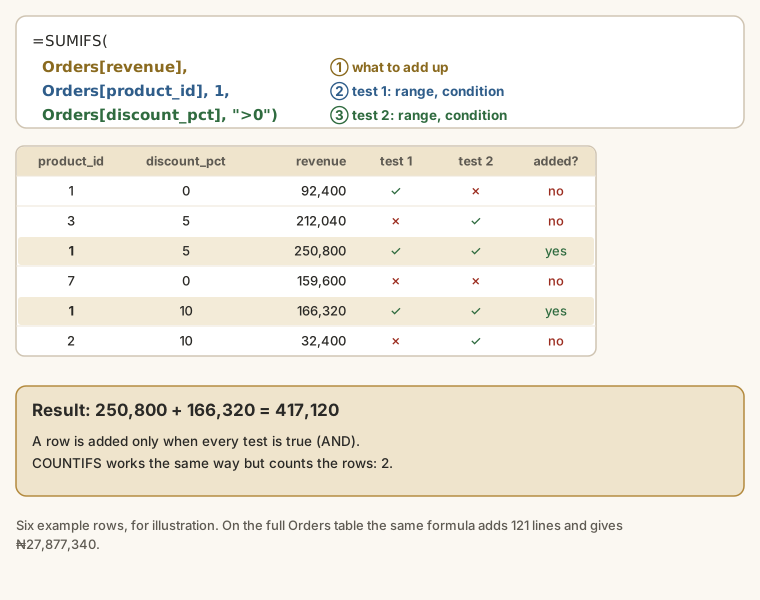
Excel formula
=SUMIFS(Orders[revenue], Orders[product_id], 1, Orders[discount_pct], ">0")
→ 27,877,340: product 1 lines that were discounted

=COUNTIFS(Orders[quantity], ">=20", Orders[discount_pct], 0)
→ 374: large lines at full price, the same answer as the AND test aboveCOUNTIFS and SUMIFS only do AND (all conditions true). For OR, add two results together, for example =COUNTIF(..., "Lagos") + COUNTIF(..., "Abuja"), taking care not to count any row twice.
AVERAGEIFS, MAXIFS and MINIFS
The same pattern works for averages, largest and smallest values:
| You write | Result | Meaning |
|---|---|---|
=AVERAGEIFS(Orders[revenue], Orders[product_id], 1) | 194,171.88 | Average product 1 line |
=AVERAGEIFS(Orders[revenue], Orders[discount_pct], ">0") | 238,219.83 | Average discounted line |
=AVERAGEIFS(Orders[revenue], Orders[discount_pct], 0) | 164,498.29 | Average full-price line |
=MAXIFS(Orders[revenue], Orders[product_id], 1) | 444,000 | Largest product 1 line |
=MINIFS(Orders[revenue], Orders[product_id], 1) | 13,200 | Smallest product 1 line: one pack |
The averages tell a story: discounted lines are much bigger than full-price ones (₦238k against ₦164k). That fits a business that gives discounts to customers buying in bulk. You found that with two formulas.
Conditions on dates
To test a date, join the comparison to a date with &. DATE(year, month, day) builds the date, which avoids any confusion between day-month and month-day formats.
Excel formula
=SUMIFS(Orders[revenue], Orders[order_date], ">="&DATE(2025,10,1), Orders[order_date], "<="&DATE(2025,12,31))
→ 160,799,625: October to December 2025Two conditions on the same column give you a range: on or after 1 October and on or before 31 December.
The same & trick works with a cell: ">="&K2 means "greater than or equal to whatever is in K2". That lets you change a report's dates without touching the formula.
Wildcards for text
In criteria, * stands for "any characters" and ? for "exactly one character". The Customers table has names such as Peace Mart and Grace Provisions:
| You write | Counts names that | Result |
|---|---|---|
=COUNTIF(Customers[customer_name], "*Mart") | end with Mart | 13 |
=COUNTIF(Customers[customer_name], "*Mart*") | contain Mart anywhere | 20 |
=COUNTIF(Customers[region], "Lagos") | are exactly Lagos | 34 |
=COUNTIFS(Customers[region], "Lagos", Customers[channel], "Wholesale") | are Lagos and Wholesale | 9 |
Example
Revenue for every product, in one formula. Instead of typing each product ID into the formula, put the conditions in cells:
On a new sheet, type
product_idinA1and the numbers 1 to 16 inA2:A17.In
B1typerevenue, and inB2:Excel formula
=SUMIFS(Orders[revenue], Orders[product_id], A2)Copy
B2down toB17. Each row tests against its own product ID, becauseA2is relative: it becomesA3,A4, and so on.In
C1typelines, and inC2:=COUNTIFS(Orders[product_id], A2). Copy it down.
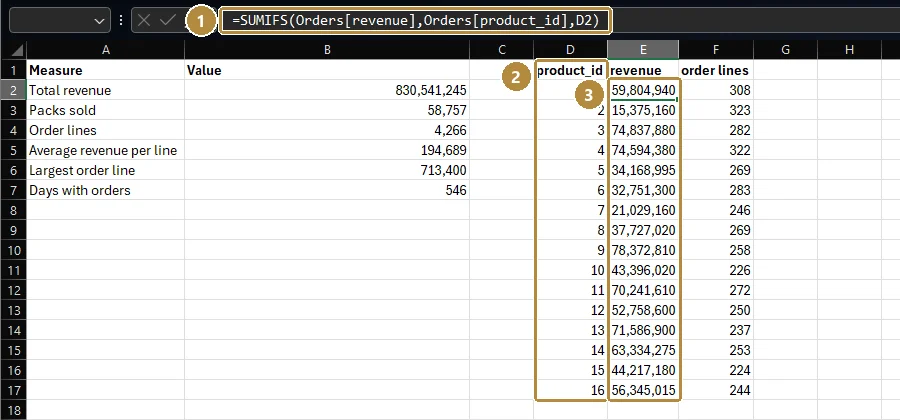
Product 1 shows ₦59,804,940 from 308 lines. A total under the table, =SUM(B2:B17), should be exactly ₦830,541,245: every line belongs to one product, so the products must add back up to the grand total.
This is a small version of a pivot table (lesson 8). Building it with formulas first shows you what a pivot table does underneath.
Walkthrough
Work through these in your Orders table. Each step builds on the last.
Classify each line. Add a column
size:Excel formula
=IFS([@quantity]>=20, "Large", [@quantity]>=10, "Medium", TRUE, "Small")Count each band. Below or beside the table, type
Large,MediumandSmallin three cells, sayK2:K4. InL2:=COUNTIF(Orders[size], K2), and copy down. You should get 1,032, 1,777 and 1,457.Check the total.
=SUM(L2:L4)must be 4,266. If it isn't, a line fell through a gap in your IFS.Revenue per band. In
M2:=SUMIFS(Orders[revenue], Orders[size], K2), copied down. Large lines bring in ₦361,021,385, more than 43% of all revenue from less than a quarter of the lines.Product 1 revenue:
=SUMIF(Orders[product_id], 1, Orders[revenue]), which should be 59,804,940.Discounted lines in 2026:
Excel formula
=COUNTIFS(Orders[order_date], ">="&DATE(2026,1,1), Orders[discount_pct], ">0")Check step 6 another way. Filter the table: order_date in 2026, discount_pct not 0. The status bar count should match your formula. Two methods agreeing is the best evidence you're right.
Summary
| Need | Use |
|---|---|
| A different result depending on a test | IF(test, if_true, if_false) |
| Several tests together | AND(...), OR(...), NOT(...) |
| Three or more outcomes | IFS(test1, v1, test2, v2, TRUE, otherwise) |
| Count rows that pass tests | COUNTIF (one) or COUNTIFS (several) |
| Add up rows that pass tests | SUMIF(test_range, test, sum_range) or SUMIFS(sum_range, test_range, test, ...) |
| Average, largest, smallest that pass | AVERAGEIFS, MAXIFS, MINIFS |
| A date range | Two tests on one column: ">="&DATE(...) and "<="&DATE(...) |
| Part of a text value | Wildcards * and ? |
Practice
Practice
What was the total revenue from product 1 (Malt drink 330ml)? (A rounded figure is fine.)
Practice
How many order lines in 2026 had a discount greater than 0?
Practice
What was revenue in the fourth quarter of 2025 (1 October to 31 December)? (A rounded figure is fine.)
Challenge
Challenge · optional
How many order lines are Large (20 packs or more)?
More practice
Optional drills. They don't count towards the certificate, but they're the fastest way to make this lesson stick. Several use a different dataset from the lesson on purpose: if you can do the same thing on unfamiliar data, you've really learned it.
Drill · optional
In attendance.csv, how many times was employee 1073 marked Late?
Drill · optional
What is the total value of Overdue invoices in the legal dataset?
Drill · optional
What is the total monthly salary of Active employees in the Sales department?
Drill · optional
Back to Kolanut: what is the average revenue of a discounted order line (discount above 0)? Round to the nearest naira.
Drill · optional
How many Kolanut order lines were large (20 packs or more) and sold at full price (discount 0)?
Drill · optional
How many Kolanut customers have a name containing the word "Provisions"?
Check your understanding
Answer every question to check.