Module 3 · Excel for Data Analysis
Sorting and filtering
Sort by one or several columns, filter by values, numbers, dates and text, total only the visible rows with SUBTOTAL, and build live filtered lists with FILTER and SORTBY.
About 25 minutes
The problem
A sales manager asks three quick questions: What was our single biggest order line? How many lines got the full 10% discount? How busy was December? Each answer is buried somewhere in 4,266 rows. Sorting and filtering bring the right rows to the top.
The concept
Sorting changes the order of the rows. Filtering hides the rows you don't want, for now, without deleting anything. Between them, they answer most "show me…" questions in seconds.
This lesson uses the Orders table with the revenue column you added in lesson 2.
Sorting by one column
Click any cell in the column, then:
| To sort | Click | Or, from the column's drop-down |
|---|---|---|
| Smallest to largest, A to Z, oldest to newest | Data → A→Z | Sort Smallest to Largest |
| Largest to smallest, Z to A, newest to oldest | Data → Z→A | Sort Largest to Smallest |
Excel names the options by what's in the column: A to Z for text, Smallest to Largest for numbers, Oldest to Newest for dates.
Sort revenue largest to smallest, and the top three order lines are:
| order_id | order_date | product_id | quantity | unit_price | revenue |
|---|---|---|---|---|---|
| 14243 | 2026-06-27 | 13 | 29 | 24,600 | 713,400 |
| 13264 | 2026-02-28 | 9 | 30 | 23,300 | 699,000 |
| 12447 | 2025-11-25 | 13 | 30 | 22,800 | 684,000 |
Sorting by several columns
To sort by one column and then, within ties, by another, use the Sort dialog: Data → Sort (Alt, A, S, S).
- Sort by
order_date, Order Newest to Oldest. - Click Add Level. Then by
revenue, Largest to Smallest. - OK.
Now the most recent day comes first, and within each day the biggest lines are at the top. Excel applies the levels in order: the second level only decides the order of rows that tie on the first.
Two more options in the Sort dialog:
- Custom List (in the Order box): sort by an order that isn't alphabetical, such as
Small, Medium, Largeor the days of the week. - Sort On: Cell Color: bring highlighted rows to the top.
Filtering
Filtering hides rows that don't match, so you can look at a slice. Nothing is deleted: clear the filter and every row comes back.
Turn filters on with Ctrl + Shift + L (or Data → Filter). Tables have them already: the small arrow in each header.
Each column's drop-down offers three kinds of filter, depending on what's in the column:
| Column holds | Drop-down offers | Example |
|---|---|---|
| Any values | Tick boxes for each distinct value, with a search box | discount_pct: tick only 10 |
| Numbers | Number Filters: Equals, Greater Than, Between, Top 10, Above Average… | revenue Greater Than 500,000 |
| Dates | Date Filters: Before, After, Between, This Month, Last Quarter…, and dates grouped by year and month | order_date: expand 2025, tick December |
| Text | Text Filters: Begins With, Contains, Does Not Contain… | customer_name Contains Mart |
Some results on Kolanut's orders:
| Filter | Lines shown |
|---|---|
discount_pct = 10 | 525 |
revenue Greater Than 500,000 | 162 |
revenue Above Average | 1,812 |
order_date in December 2025 | 334 |
product_id = 13 | 237 |
Filters on several columns combine with AND. Filter discount_pct to 10 and quantity to Greater Than or Equal To 20, and you see the 218 lines that pass both.
How to tell a filter is on
Filters are easy to forget, and a forgotten filter gives wrong totals. Three signs:
- The column's arrow becomes a funnel icon.
- The row numbers turn blue and skip (2, 5, 9…), because rows in between are hidden.
- The status bar says "525 of 4266 records found".
Clear one column's filter from its drop-down (Clear Filter From…), or all of them with Data → Clear (Alt, A, C).
Totals that respect the filter: SUBTOTAL
SUM, COUNT and AVERAGE include hidden rows. With a filter on, =SUM(Orders[revenue]) still shows ₦830,541,245. To total only what's visible, use SUBTOTAL:
Excel formula
=SUBTOTAL(function_num, ref1, ...)| function_num | Calculates | Like |
|---|---|---|
| 1 | Average | AVERAGE |
| 2 | Count of numbers | COUNT |
| 3 | Count of non-empty cells | COUNTA |
| 4 | Largest | MAX |
| 5 | Smallest | MIN |
| 9 | Sum | SUM |
With discount_pct filtered to 10:
| You write | Result |
|---|---|
=SUM(Orders[revenue]) | 830,541,245 (ignores the filter) |
=SUBTOTAL(9, Orders[revenue]) | 122,835,600 (visible rows only) |
=SUBTOTAL(3, Orders[order_id]) | 525 |
A Table's Total Row (Table Design → tick Total Row) adds a row under the table with a drop-down in each column: Sum, Count, Average… It uses SUBTOTAL, so it always follows the filter.
The FILTER function
Filtering with the drop-downs changes what you see. The FILTER function copies matching rows to another place, so the original stays untouched and the result updates when the data changes. (Excel 365 and 2021 onwards, and Google Sheets.)
Excel formula
=FILTER(array, include, [if_empty])| Argument | Meaning |
|---|---|
array | What to return: a whole table or some columns |
include | A test for each row: TRUE keeps it |
if_empty | Optional: what to show if no row passes |
Excel formula
=FILTER(Orders, Orders[discount_pct]=10, "none")Type it in one empty cell on another sheet and the 525 matching rows spill into the cells below and to the right. (Copy the headers yourself: FILTER returns only the data.)
For several conditions, multiply the tests for AND and add them for OR. Each test must be in its own brackets:
Excel formula
=FILTER(Orders, (Orders[discount_pct]=10) * (Orders[quantity]>=20))   → 218 rows: both
=FILTER(Orders, (Orders[discount_pct]=10) + (Orders[quantity]>=25)) → 982 rows: eitherSORT and SORTBY
Like FILTER, these return a sorted copy:
Excel formula
=SORT(array, [sort_index], [sort_order])
=SORT(Orders, 8, -1)                          → the whole table by column 8 (revenue), largest first
=SORTBY(Orders, Orders[revenue], -1) → the same, naming the columnsort_order is 1 for ascending and -1 for descending. They combine with FILTER, working from the inside out:
Excel formula
=SORTBY(FILTER(Orders, Orders[discount_pct]=10), FILTER(Orders[revenue], Orders[discount_pct]=10), -1)That's every 10%-discount line, biggest first. For one-off looks the drop-downs are quicker; for a report that should update itself, use the functions.
Example
What is the biggest single order line? Click the revenue drop-down → Sort Largest to Smallest. The top row is order line 14243: 29 packs of Body lotion 400ml (product 13) at ₦24,600 on 27 June 2026, worth ₦713,400.
How much did the 10% discount lines bring in? Filter discount_pct to 10. The status bar shows 525 of 4,266 records. Select the revenue column: the status bar's Sum shows ₦122,835,600 (the status bar, like SUBTOTAL, adds only visible cells). An average of ₦233,973 per line, against ₦194,689 for all lines.
Walkthrough
This is what filtering discount_pct to 10 looks like:
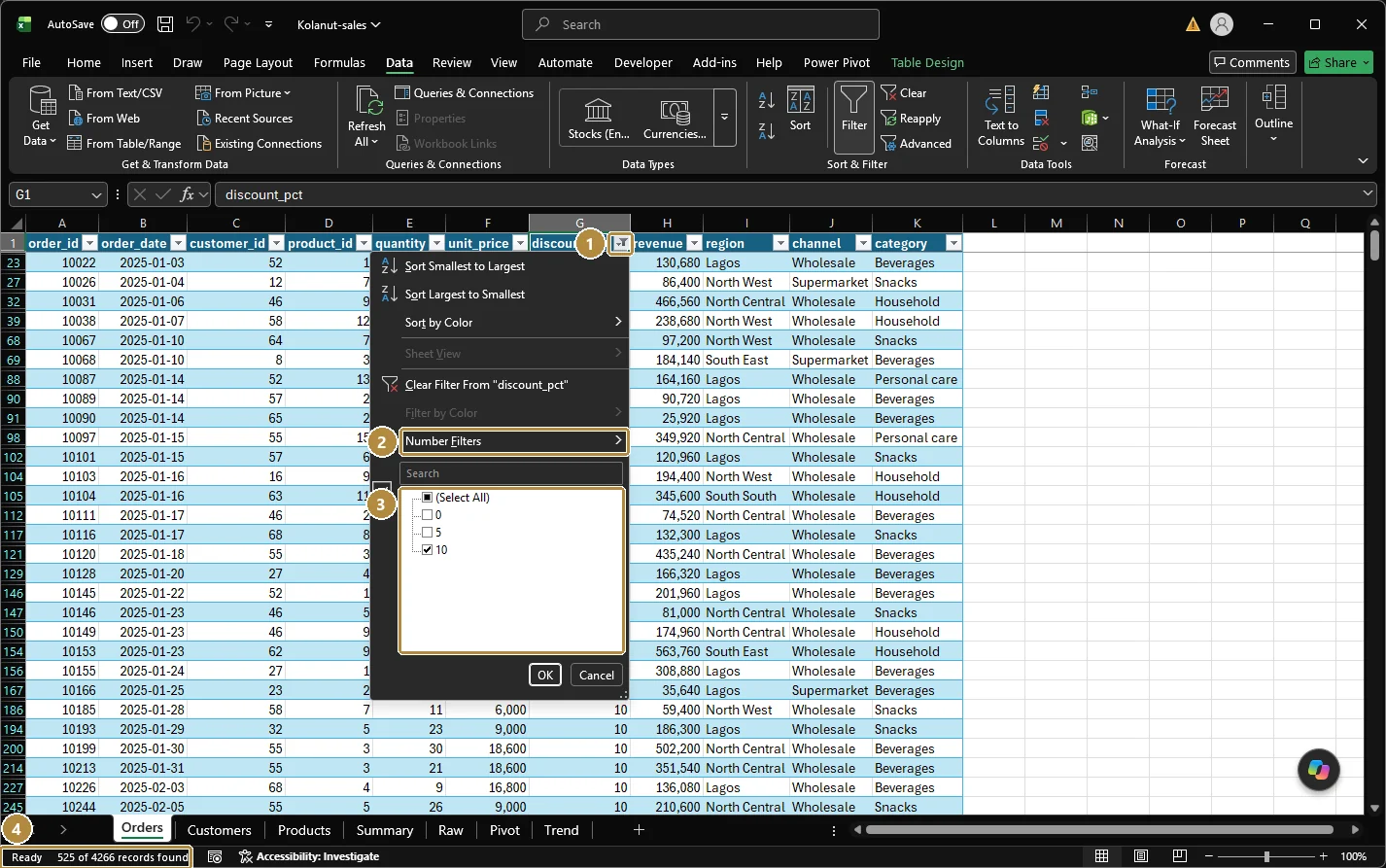
- The filter button on the column header. Once a filter is on, it shows a funnel icon.
- Number Filters: conditions like Greater Than or Top 10. Text columns show Text Filters; date columns show Date Filters.
- The value list: tick the values to keep. Use the search box above it for long lists.
- The status bar reports the result: 525 of 4266 records found.
How many lines had a 10% discount?
- Click the
discount_pctdrop-down, untick Select All, tick 10, OK. - The status bar at the bottom of the window shows "525 of 4266 records found". Or turn on the Table's Total Row and set the
order_idtotal to Count. - Under the table, or on another sheet, type
=SUBTOTAL(9, Orders[revenue]). It should show 122,835,600. - Clear the filter: Data → Clear. The SUBTOTAL changes back to 830,541,245.
How many lines in December 2025?
- Open the
order_datedrop-down. Dates are grouped: expand 2025, untick everything except December. - Read the count the same way: 334.
The ten biggest lines.
- Clear all filters.
revenuedrop-down → Number Filters → Top 10… → Top 10 Items → OK.- Sort the result largest to smallest. The smallest of the ten is ₦641,915.
Shortcuts for sorting and filtering
| Keys | Does |
|---|---|
| Ctrl + Shift + L | Filters on / off |
| Alt + ↓ (on a header cell) | Open that column's filter drop-down |
| Alt, A, S, S | Open the Sort dialog |
| Alt, A, C | Clear all filters |
Summary
| Need | Use |
|---|---|
| Reorder by one column | Data → A→Z / Z→A, or the column drop-down |
| Reorder by several columns | Data → Sort, Add Level |
| Show only some rows | The column drop-down: tick boxes, Number, Date or Text Filters |
| Totals of the visible rows | SUBTOTAL(9, ...), or the Table's Total Row |
| A filtered copy that updates itself | FILTER(array, test); * for AND, + for OR |
| A sorted copy | SORT or SORTBY |
Practice
Practice
How many order lines received a 10% discount?
Practice
How many order lines were placed in December 2025?
Challenge
Challenge · optional
What is the revenue of the second largest order line, in naira?
More practice
Optional drills. They don't count towards the certificate, but they're the fastest way to make this lesson stick. Several use a different dataset from the lesson on purpose: if you can do the same thing on unfamiliar data, you've really learned it.
Drill · optional
In the HR employees.csv, how many employees in the IT department are still Active?
Drill · optional
Sort the HR employees.csv by monthly_salary, largest first. What is the full name of the highest-paid employee?
Drill · optional
How many order lines for product 5 were placed in March 2026?
Check your understanding
Answer every question to check.