Module 4 · Excel for Data Analysis
Formulas and functions
Write formulas, lock references with $, and use SUM, AVERAGE, MEDIAN, COUNT, ROUND, date functions and UNIQUE, step by step, with every error value explained.
About 30 minutes
The problem
You'll write hundreds of formulas as an analyst. Most mistakes come from a few causes: a reference that shifts when copied, a function applied to the wrong range, or an error value spreading silently through a workbook. Get the basics right once and those mistakes mostly disappear.
The concept
A formula is an instruction that tells Excel to calculate something. A function is a ready-made formula with a name, such as SUM or AVERAGE, that does a common job for you.
This lesson works on the Orders table you built in lesson 2. Its columns are:
| Column | A | B | C | D | E | F | G | H |
|---|---|---|---|---|---|---|---|---|
| Header | order_id | order_date | customer_id | product_id | quantity | unit_price | discount_pct | revenue |
| Row 2 | 10001 | 2025-01-01 | 27 | 3 | 14 | 18,600 | 0 | 260,400 |
The data runs from row 2 to row 4267: 4,266 order lines.
Writing a formula
Every formula starts with an equals sign. Without it, Excel treats what you type as text.
Excel formula
=E2*F2- Click an empty cell.
- Type
=. - Click cell
E2(or type it). Excel colours the reference and outlines the cell in the same colour. - Type
*, then clickF2. - Press Enter. The cell shows the result,
260,400. The formula bar above the grid still shows=E2*F2.
That is the rule to remember: the cell shows the result, the formula bar shows the formula.
Operators and the order of calculation
| Operator | Meaning | Example | Result |
|---|---|---|---|
+ | add | =5+3 | 8 |
- | subtract | =5-3 | 2 |
* | multiply | =5*3 | 15 |
/ | divide | =6/3 | 2 |
^ | power | =5^2 | 25 |
& | join text | ="Jan"&" 2025" | Jan 2025 |
Excel calculates in maths order: brackets first, then powers, then multiply and divide, then add and subtract.
Excel formula
=1+2*3        → 7, because 2*3 happens first
=(1+2)*3 → 9, because the brackets happen firstThis matters for the revenue formula from lesson 2:
Excel formula
=E2*F2*(1-G2/100)Without the brackets, =E2*F2*1-G2/100 would multiply first and then subtract a tiny number, which is wrong. For row 5 (28 packs at ₦6,000 with a 5% discount), the bracketed version gives ₦159,600; the unbracketed version gives ₦167,999.95.
Cell references
A reference such as E2 means "the value in column E, row 2". If that value changes, every formula that uses it updates on its own. That's why analysts write =E2*F2 instead of typing =14*18600: the formula keeps working when the data changes.
A range is a block of cells, written as first cell, colon, last cell:
| You write | It means |
|---|---|
E2:E4267 | Column E from row 2 to row 4267 |
A1:H1 | Row 1 from column A to column H (the headers) |
E:E | The whole of column E |
Orders[quantity] | The quantity column of the Orders table, however long it grows |
Inside a table, prefer the table names. Orders[quantity] is easier to read than E2:E4267, and it stays correct when new rows are added.
Relative and absolute references
When you copy a formula to another cell, Excel adjusts its references by the same distance you moved. Copy =E2*F2 one row down and it becomes =E3*F3. That's a relative reference, and it's usually what you want: each row calculates its own revenue.
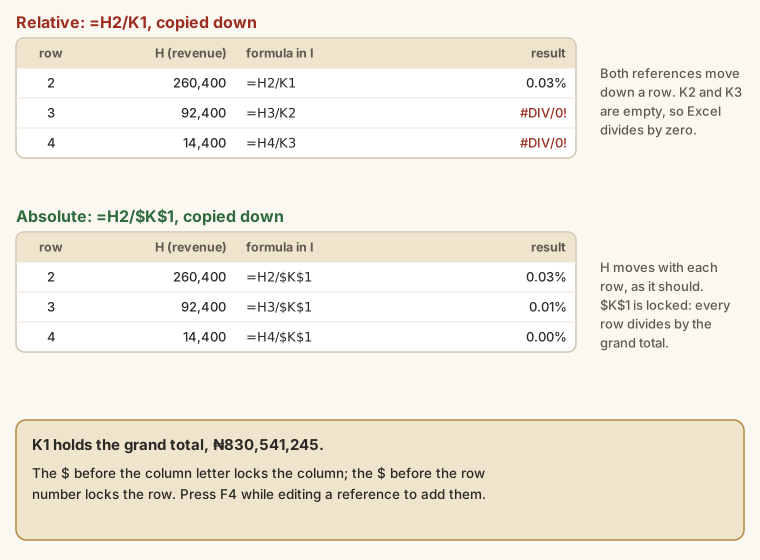
Sometimes you want a reference not to move: a total, a tax rate or an exchange rate that sits in one cell. Put a dollar sign in front of the part you want to lock. That's an absolute reference.
| Reference | Copied one row down | Copied one column right | Use it for |
|---|---|---|---|
K1 | K2 | L1 | Row-by-row calculations |
$K$1 | $K$1 | $K$1 | One fixed cell: a total or a rate |
$K1 | $K2 | $K1 | Column locked, row moves |
K$1 | K$1 | L$1 | Row locked, column moves |
You don't need to type the dollars. While you're editing a formula, put the cursor on a reference and press F4. Each press cycles K1 → $K$1 → K$1 → $K1 → K1. (On many laptops it's Fn + F4.)
Functions
A function has a name, then brackets holding its arguments: the values it works on, separated by commas.
Excel formula
=FUNCTION_NAME(argument1, argument2, ...)
=ROUND(194688.52, 0)As you type =RO, Excel lists matching functions. Press Tab to accept one. Once the bracket is open, a tooltip shows the arguments it expects; optional ones are in square brackets.
The rest of this section takes the everyday functions one at a time. Each result is from Kolanut's real Orders table, so you can check your own answers against it.
SUM
Adds up numbers.
Excel formula
=SUM(number1, [number2], ...)| You write | Result | What it means |
|---|---|---|
=SUM(Orders[revenue]) | 830,541,245 | Total revenue, all 4,266 lines |
=SUM(Orders[quantity]) | 58,757 | Total packs sold |
=SUM(E2:E4) | 25 | Packs on the first three lines (14 + 7 + 4) |
SUM ignores text and empty cells. That's helpful, but it can hide a problem: a number stored as text (often from a bad import) is quietly left out. If a total looks too small, check for numbers that sit on the left of their cell; Excel puts text on the left and numbers on the right.
Shortcut: select the cell under a column of numbers and press Alt + = (AutoSum). Excel writes the SUM for you.
AVERAGE, MEDIAN, MIN and MAX
Excel formula
=AVERAGE(number1, [number2], ...)
=MEDIAN(number1, [number2], ...)
=MIN(number1, [number2], ...)
=MAX(number1, [number2], ...)| You write | Result | What it means |
|---|---|---|
=AVERAGE(Orders[revenue]) | 194,688.52 | The mean order line |
=MEDIAN(Orders[revenue]) | 166,680 | The middle order line, when all are sorted |
=MIN(Orders[revenue]) | 3,420 | The smallest line: 1 pack of water with 5% off |
=MAX(Orders[revenue]) | 713,400 | The largest line: 29 packs at ₦24,600 |
=AVERAGE(Orders[quantity]) | 13.77 | Packs per line, on average |
Why are the average and the median different? A few very large lines pull the average up. The median is "the typical line", the average is "total divided by count". When a manager asks "what does a normal order look like?", the median is often the better answer. You'll meet this again in the Statistics course.
COUNT, COUNTA and COUNTBLANK
These three are easy to mix up.
| Function | Counts | Orders example | Result |
|---|---|---|---|
COUNT | Cells that contain numbers (dates are numbers too) | =COUNT(Orders[revenue]) | 4,266 |
COUNTA | Cells that are not empty: numbers, text, anything | =COUNTA(Orders[order_id]) | 4,266 |
COUNTBLANK | Cells that are empty | =COUNTBLANK(Orders[revenue]) | 0 |
So how many order lines are there? =COUNTA(Orders[order_id]) gives 4,266, or =ROWS(Orders) counts the table's rows directly.
Use COUNT and COUNTA together as a quick data check: if =COUNT(Orders[quantity]) is lower than =COUNTA(Orders[quantity]), some quantities are stored as text.
ROUND
Rounds a number to a set number of decimal places.
Excel formula
=ROUND(number, num_digits)| You write | Result | num_digits means |
|---|---|---|
=ROUND(194688.52, 0) | 194,689 | Whole number |
=ROUND(194688.52, -3) | 195,000 | Nearest thousand (negative goes left of the point) |
=ROUND(194688.52/1000, 1) | 194.7 | Thousands, one decimal: "₦194.7k" |
=ROUND(AVERAGE(Orders[revenue]), 0) | 194,689 | A function inside a function |
The last one is called nesting: Excel works from the inside out. First AVERAGE gives 194,688.52, then ROUND turns it into 194,689.
YEAR, MONTH, DAY and TEXT for dates
Excel stores a date as a number: the count of days since 1 January 1900. That's why you can subtract dates to get a number of days, and why COUNT counts dates. These functions pull the parts out.
| You write (row 2 date is 2025-01-01) | Result |
|---|---|
=YEAR(B2) | 2025 |
=MONTH(B2) | 1 |
=DAY(B2) | 1 |
=TEXT(B2, "mmm yyyy") | Jan 2025 |
=TEXT(B2, "yyyy-mm") | 2025-01 |
=TEXT(B2, "ddd") | Wed |
=MAX(Orders[order_date]) - MIN(Orders[order_date]) + 1 | 546 (days from first order to last) |
YEAR and MONTH return numbers. TEXT returns text. For a column you'll group by month, TEXT(date, "yyyy-mm") is a good choice because 2025-01, 2025-02 ... sort in the right order as text. "mmm yyyy" reads better, but "Apr 2025" sorts before "Jan 2025" alphabetically.
UNIQUE
Returns the distinct values in a range, each once.
Excel formula
=UNIQUE(array)=UNIQUE(Orders[product_id]) fills a column with the 16 product IDs. It spills: you type it in one cell, and the results flow down into the cells below. Count them with =COUNTA(UNIQUE(Orders[product_id])) (16), or count order days with =COUNTA(UNIQUE(Orders[order_date])) (546).
UNIQUE is in Excel 365 and Excel 2021 onwards. In Google Sheets it's also UNIQUE, and COUNTUNIQUE counts in one step.
IFERROR
Shows something else when a formula gives an error.
Excel formula
=IFERROR(value, value_if_error)=IFERROR(H2/K2, 0) gives 0 instead of #DIV/0! when K2 is empty.
Use it carefully. An error usually means something is wrong, and IFERROR hides it. Fix the cause first; use IFERROR only where the error is expected, such as a lookup for a customer who genuinely isn't in the list (lesson 6).
Error values and what they mean
When a formula can't work, Excel shows an error value instead of a result. Each one tells you something specific.
| Error | What went wrong | Example | How to fix it |
|---|---|---|---|
#DIV/0! | Dividing by zero or an empty cell | =H2/K2 with K2 empty | Lock the reference ($K$1) or check the cell |
#VALUE! | Maths on text | ="₦1,000"*2 | Store the number without the ₦ sign or comma |
#NAME? | Excel doesn't recognise a name | =SUMM(H2:H10), or text without quotes | Check spelling and quotes |
#REF! | A referenced cell no longer exists | You deleted column K that a formula used | Undo, or rewrite the formula |
#N/A | A lookup found no match | XLOOKUP for a missing customer | Check the lookup value (lesson 6) |
#SPILL! | A spilling formula has no room | UNIQUE with data in the cells below | Clear the cells in the way |
#### | Not an error: the column is too narrow | A long number or date | Widen the column |
Errors spread. If H2 shows #VALUE!, then =SUM(H2:H4267) shows #VALUE! too. Always fix the first error in the chain, not the total at the end.
Example
What share of total revenue does each order line make up?
- In
K1, put the grand total:=SUM(Orders[revenue]). It shows 830,541,245. - In
I2, the first line's share:=H2/$K$1. Format column I as a percentage with two decimals. - Press Enter. Because column I is right next to the table, Excel adds it as a new table column and fills the formula down every row for you, written as
=[@revenue]/$K$1: the same formula in table language. (Outside a table, double-click the fill handle, the small square at the bottom right of the cell, to copy a formula down.)
Row 2 shows 0.03%: ₦260,400 out of ₦830,541,245. Every row divides by the same total because $K$1 is locked. If you'd written =H2/K1, row 3 would divide by K2, which is empty, and show #DIV/0!, exactly as in the diagram above.
To check the result, =SUM(I2:I4267) should be exactly 100%. Testing a result like this is a habit worth building.
Revenue by year. Add a column year with =YEAR([@order_date]). You'll learn to total by year with SUMIFS in the next lesson, but you can already check one year by filtering: 2025 brings in ₦539,810,790 from 2,832 lines; January to June 2026 brings in ₦290,730,455 from 1,434 lines.
Walkthrough
Build a small summary block to the right of your Orders table, one figure per row. This is the first step of most analyses: before anything clever, know the basic size and shape of the data.
In
K3, type the labelTotal revenue. InL3, type=SUM(Orders[revenue]). It should show 830,541,245.Below it, add these rows:
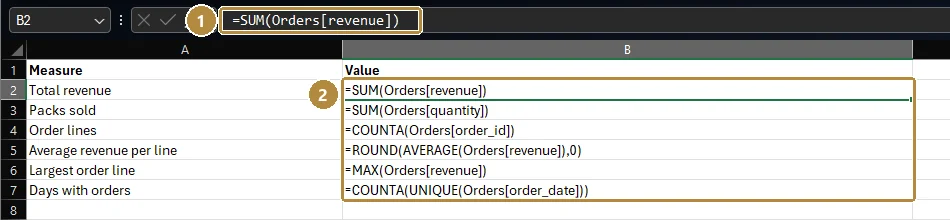
Label (K) Formula (L) Expect Packs sold =SUM(Orders[quantity])58,757 Order lines =COUNTA(Orders[order_id])4,266 Average per line =ROUND(AVERAGE(Orders[revenue]), 0)194,689 Median per line =MEDIAN(Orders[revenue])166,680 Largest line =MAX(Orders[revenue])713,400 Days with orders =COUNTA(UNIQUE(Orders[order_date]))546 Format the money cells: select them, press Ctrl + 1, choose Number, tick Use 1000 Separator, set decimals to 0.
Press Ctrl + ` (the key left of 1) to show every formula instead of its result. Check each one points at the right column. Press it again to switch back.
- Check by a second route. Click the
revenuecolumn header to select it. The status bar at the bottom of the window shows Average, Count and Sum. Sum should matchL3. If your formula and the status bar disagree, find out why before moving on: usually a filter is on, or a number is stored as text.
Shortcuts for formulas
| Keys | Does |
|---|---|
| = | Start a formula |
| F2 | Edit the selected cell, with its references coloured |
| F4 | While editing, cycle A1 → $A$1 → A$1 → $A1 |
| Ctrl + ` | Show or hide all formulas |
| Ctrl + Enter | Enter the same formula into every selected cell |
| Ctrl + D | Fill down from the cell above |
| Alt + = | AutoSum |
| Tab | Accept a function name that Excel suggests while you type |
Summary
| Need | Use |
|---|---|
| Calculate from other cells | = then references and operators |
| Keep a reference fixed when copying | $K$1 (press F4) |
| Total, mean, middle, smallest, largest | SUM, AVERAGE, MEDIAN, MIN, MAX |
| Count numbers / non-empty / empty cells | COUNT, COUNTA, COUNTBLANK |
| Round a value | ROUND(x, digits) |
| Parts of a date | YEAR, MONTH, DAY, TEXT(date, "yyyy-mm") |
| Distinct values | UNIQUE |
| Replace an expected error | IFERROR(x, alt) |
Practice
Practice
How many packs (units) did Kolanut sell in total across all order lines?
Practice
What is the average revenue per order line? (A rounded figure is fine.)
Challenge
Challenge · optional
On how many different days did Kolanut receive at least one order?
More practice
Optional drills. They don't count towards the certificate, but they're the fastest way to make this lesson stick. Several use a different dataset from the lesson on purpose: if you can do the same thing on unfamiliar data, you've really learned it.
Drill · optional
What is the average monthly salary of all employees in the HR employees.csv? Round to the nearest naira.
Drill · optional
How many hours were worked in total across attendance.csv?
Drill · optional
What is the largest single invoice in the legal dataset's invoices.csv, in naira?
Drill · optional
Back to Kolanut: what is the median revenue per order line?
Drill · optional
How many different products appear in Kolanut's orders?
Check your understanding
Answer every question to check.