Module 8 · Excel for Data Analysis
Pivot tables
Summarise thousands of rows in seconds with pivot tables: the four areas, sum, count and average, percentages and growth, date grouping, top N, slicers and refreshing.
About 30 minutes
The problem
SUMIFS works, but a summary of revenue by region and month would need 6 × 18 = 108 formulas. The director will then ask for it by channel instead. Pivot tables build these summaries by dragging fields, and rebuild them in seconds when the question changes.
The concept
A pivot table is a summary that Excel builds for you. You tell it which column to group by and which numbers to add up, and it does what dozens of SUMIFS formulas would do, in a second. Change your mind, drag a field somewhere else, and the summary rebuilds itself.
The name comes from pivoting: turning the same data round to look at it from another side. Revenue by region, then by month, then by channel, all from one table.
What a pivot table needs
The source must be a clean, tabular list:
- One header row, with a name in every column.
- One row per record (here, per order line).
- No blank rows or columns in the middle, and no subtotal rows.
- The columns you want to group by: for Kolanut, the
revenue,region,channelandcategorycolumns you added in lessons 2 and 6.
Your Orders table already meets all of these. Build pivots on a Table, not a fixed range: when rows are added to the Table, a Refresh picks them up. A pivot built on A1:K4267 would miss them.
The four areas
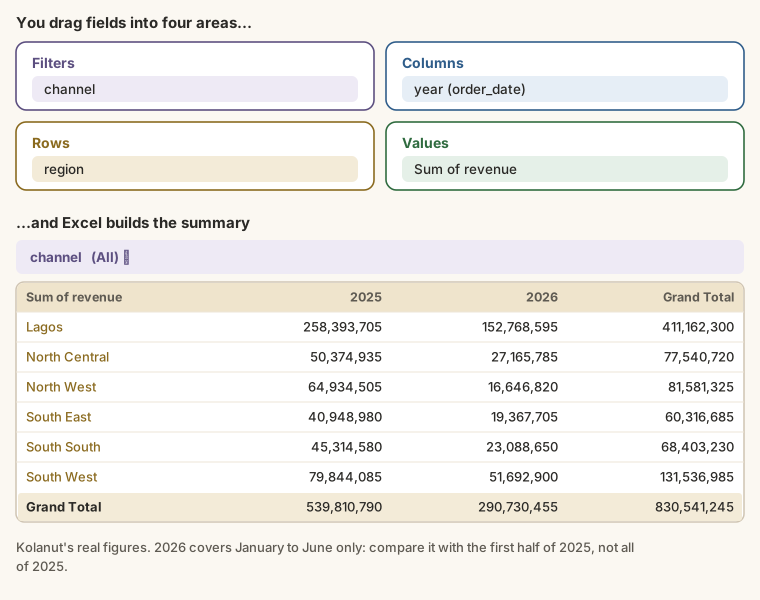
| Area | Holds | Each value becomes | Example |
|---|---|---|---|
| Rows | Categories down the side | A row | region |
| Columns | Categories across the top | A column | year of order_date |
| Values | The numbers to summarise | The cells in the middle | Sum of revenue |
| Filters | A filter for the whole pivot | (a drop-down above it) | channel |
You need at least one field in Values and usually one in Rows. Columns and Filters are optional. Put text fields (region, channel) in Rows, Columns or Filters; put number fields (revenue, quantity) in Values.
Summarise Values By: sum, count, average…
Numbers in Values are summed by default. Right-click any number in the pivot → Summarize Values By to change it.
With channel in Rows and revenue in Values three times, each summarised a different way:
| Channel | Sum of revenue | Count of revenue | Average of revenue |
|---|---|---|---|
| Kiosk | 39,888,675 | 777 | 51,337 |
| Supermarket | 210,387,665 | 1,308 | 160,847 |
| Wholesale | 580,264,905 | 2,181 | 266,055 |
| Grand Total | 830,541,245 | 4,266 | 194,689 |
Each summary answers a different question. Sum: how much did each channel bring in? Count: how many order lines? Average: how big is a typical line? Wholesale lines average five times the size of kiosk lines.
Show Values As: percentages and differences
Summarise Values By decides what to calculate. Show Values As (right-click a number) decides how to show it:
| Show Values As | Each cell becomes | Use it to ask |
|---|---|---|
| % of Grand Total | Its share of the overall total | What share does each region bring in? |
| % of Column Total | Its share of its column | What share of 2025 came from Lagos? |
| % of Row Total | Its share of its row | How did Lagos split between the years? |
| Difference From | Minus a chosen base item | How much more than last year? |
| % Difference From | The percentage change from a base item | By what percentage did it grow? |
| Running Total In | Adds up as it goes | How much by the end of each month? |
The same region pivot as % of Grand Total:
| Region | % of revenue |
|---|---|
| Lagos | 49.5% |
| South West | 15.8% |
| North West | 9.8% |
| North Central | 9.3% |
| South South | 8.2% |
| South East | 7.3% |
And with years across the top as % of Column Total, Lagos's share rises from 47.9% of 2025's revenue to 52.5% of 2026's so far. That's a story worth telling: the business is leaning more on Lagos, not less.
To show the amount and the percentage side by side, drag revenue into Values twice and set Show Values As only on the second one.
Grouping dates
A date field in Rows or Columns would give one row per day: 546 of them. Group it instead: right-click any date in the pivot → Group → choose Months, Quarters and Years (choose Years together with Months, or January 2025 and January 2026 are added together).
Recent versions of Excel group dates automatically when you add a date field; click the + next to a year to see its quarters and months.
By quarter, Kolanut's revenue grows almost every quarter:
| Year | Quarter | Revenue |
|---|---|---|
| 2025 | Q1 | 119,509,320 |
| 2025 | Q2 | 124,653,750 |
| 2025 | Q3 | 134,848,095 |
| 2025 | Q4 | 160,799,625 |
| 2026 | Q1 | 143,209,130 |
| 2026 | Q2 | 147,521,325 |
December 2025 alone was ₦66,284,310, the biggest month by far: the festive season. That's why Q4 stands out.
Numbers can be grouped too: right-click a quantity in Rows → Group → Starting at 1, Ending at 30, By 10 gives bands 1–10, 11–20, 21–30.
Sorting and filtering inside a pivot
- Sort: right-click a number → Sort → Largest to Smallest. The pivot keeps that order when it refreshes.
- Filter a row field: click the drop-down on Row Labels. Value Filters → Top 10 shows the top N items by value: the top 5 customers, the top 3 products.
- Filters area: drag
channelto Filters, and a drop-down above the pivot limits everything to one channel.
Slicers
A slicer is a set of buttons that filters the pivot with one click, which is clearer than a drop-down for anyone reading your report.
- Click inside the pivot.
- PivotTable Analyze → Insert Slicer, tick
channel, OK. - Click Wholesale: the pivot shows wholesale only. Ctrl + click to choose several. The clear-filter icon in the corner shows everything again.
A timeline (PivotTable Analyze → Insert Timeline) is a slicer for dates: drag across months to filter a period.
Refreshing
A pivot table is a snapshot. It doesn't update by itself when the source data changes. After editing or adding rows: Data → Refresh All (Ctrl + Alt + F5), or right-click the pivot → Refresh.
GETPIVOTDATA
If you type = and click a cell inside a pivot, Excel writes a GETPIVOTDATA formula instead of a simple reference:
Excel formula
=GETPIVOTDATA("revenue", $A$3, "region", "Lagos")That's deliberate: it finds "Lagos revenue" by name, so it still works when the pivot is re-sorted or reshaped. It's useful for a summary page that quotes pivot figures. If you'd rather have plain references, turn it off under PivotTable Analyze → Options ▾ → Generate GetPivotData.
Example
Revenue by channel, with each channel's share. channel in Rows, revenue in Values twice, the second shown as % of Grand Total:
| Channel | Sum of revenue | % of total |
|---|---|---|
| Wholesale | 580,264,905 | 69.9% |
| Supermarket | 210,387,665 | 25.3% |
| Kiosk | 39,888,675 | 4.8% |
| Grand Total | 830,541,245 | 100% |
Wholesalers are 21 of Kolanut's 90 customers, fewer than a quarter, but bring in 70% of revenue. A director would want to know which wholesalers, and whether any are at risk: that's the next question, and with customer_name in Rows and a Top 10 filter, the next pivot.
This half-year against the same half last year. The data stops at June 2026, so comparing 2026 with all of 2025 isn't fair. Filter both years to January–June (group by Months and Years, and filter the months): the first half of 2025 brought in ₦244,163,070 and the first half of 2026 ₦290,730,455, 19.1% more. Show Values As → % Difference From, with Base field Years and Base item 2025, calculates that for you.
Walkthrough
- Click inside the
Orderstable (with itsrevenue,region,channelandcategorycolumns). - Insert → PivotTable → From Table/Range → New Worksheet, OK.
- In the PivotTable Fields pane, drag
regionto Rows andrevenueto Values. You get Sum of revenue by region. - Drag
order_dateto Columns. Excel groups it by year (click the+to see quarters and months). If it doesn't, right-click a date → Group → select Months and Years. - Right-click any revenue number → Number Format → Number, 0 decimals, with a thousands separator.
- Sort: right-click a revenue number in the Grand Total column → Sort → Largest to Smallest.
- Check the Grand Total is ₦830,541,245, the same as your
SUMfrom lesson 4. If not, the pivot needs refreshing or its source range is wrong. - Insert Slicer for
channel. Click Wholesale, then Kiosk, and watch the whole pivot change. - Drag
order_dateout of Columns, and dragrevenueinto Values a second time. Right-click the second one → Show Values As → % of Grand Total.
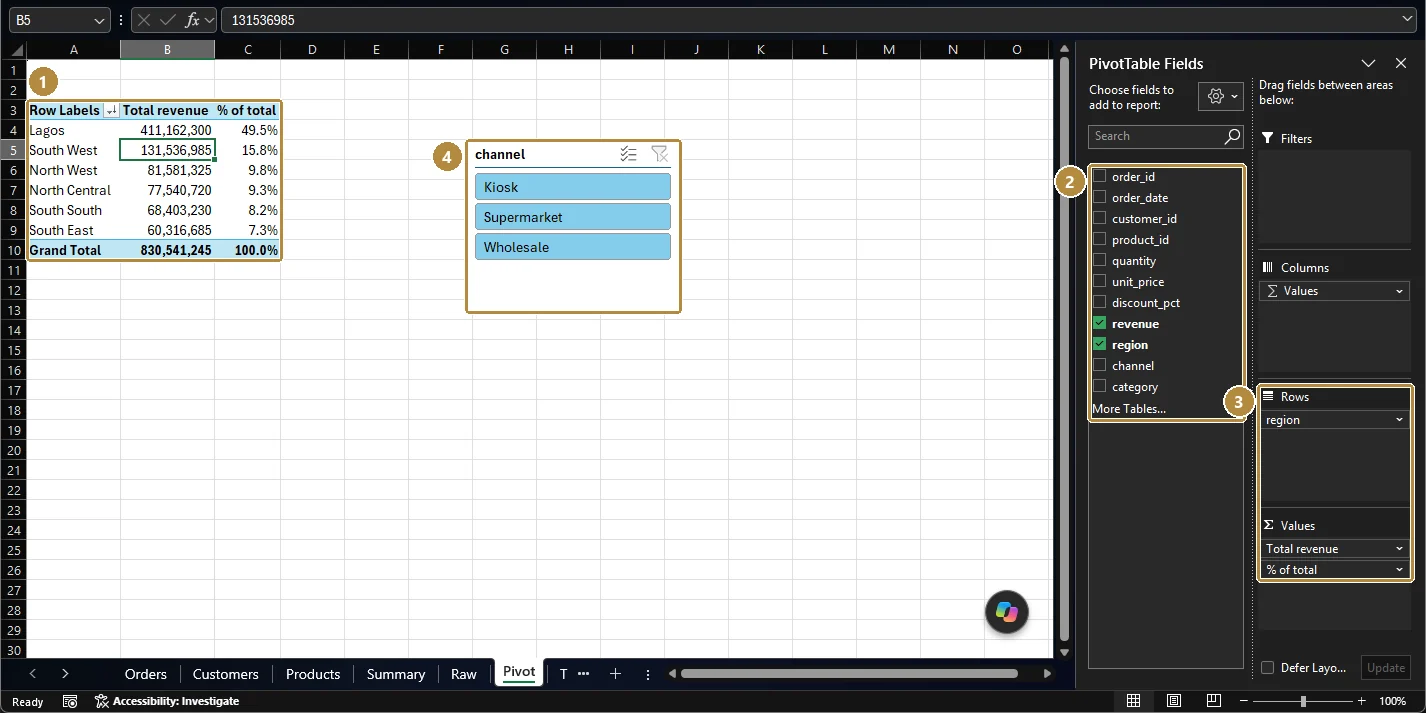
- The pivot table: region in rows, sorted by revenue, with a second value column showing % of total. Lagos is 49.5% of all revenue.
- Field list: every column of the source Table. Ticked fields are in use.
- Areas: Filters, Columns, Rows and Values. Drag fields between them to reshape the summary.
- Slicer for
channel: click Wholesale and the pivot shows wholesale revenue only.
Shortcuts for pivot tables
| Keys | Does |
|---|---|
| Alt, N, V | Insert a PivotTable |
| Alt + F5 | Refresh the selected pivot |
| Ctrl + Alt + F5 | Refresh all pivots and connections |
| Alt + ↓ (on a field in the pivot) | Filter or sort that field |
Summary
| Need | Do |
|---|---|
| Summarise by a category | Category in Rows, number in Values |
| A second dimension | Another category in Columns |
| Count or average instead of sum | Right-click → Summarize Values By |
| Shares, differences, running totals | Right-click → Show Values As |
| Months, quarters, years | Right-click a date → Group |
| Top N items | Row Labels → Value Filters → Top 10 |
| One-click filtering | Insert Slicer or Insert Timeline |
| Up-to-date numbers | Refresh All (Ctrl + Alt + F5) |
Practice
Practice
What percentage of all revenue came from Wholesale customers, to one decimal place? Build it with a pivot table.
Practice
Which sales rep brought in the most revenue in 2026 (January–June)? Give their full name.
Challenge
Challenge · optional
Which month had the highest revenue in the whole dataset? Answer with the month and year, for example March 2025.
More practice
Optional drills. They don't count towards the certificate, but they're the fastest way to make this lesson stick. Several use a different dataset from the lesson on purpose: if you can do the same thing on unfamiliar data, you've really learned it.
Drill · optional
Build a pivot table on the HR employees.csv with department in Rows and a count of Active employees. Which department has the most active employees?
Drill · optional
Pivot attendance.csv with status in Filters (Late) and employee_id in Rows. How many different employees were late at least once in June?
Drill · optional
Which channel brought Kolanut the most revenue in 2025? (Add channel to the orders with XLOOKUP, or build the pivot on the data model.)
Check your understanding
Answer every question to check.