Module 7 · Excel for Data Analysis
Data cleaning in Excel
Find and fix messy data step by step: TRIM, CLEAN, PROPER, SUBSTITUTE, VALUE, LEFT and RIGHT, mapping tables, Remove Duplicates and day-first dates.
About 30 minutes
The problem
Kolanut's customer list, exported from its old system, is a mess: names with stray spaces and random capitals, regions spelled 23 different ways, three date formats, credit limits stored as text with ₦ signs, and 12 customers listed twice. The new system needs a clean list, and finance wants the total credit extended to customers.
The concept
Cleaning means turning data that a person can read into data that a formula can trust. Excel treats Lagos, LAGOS and Lagos (with a space) as text, and a SUMIFS for "Lagos" will miss the one with the space. A credit limit typed as ₦2,050,000 is text too, so SUM skips it without a word.
Step 1: look before you fix
Before changing anything, find out what's wrong and how often. Here is what a quick inspection of the 102 rows of customer_list_raw.csv finds:
| Column | Problem | How many rows |
|---|---|---|
| Customer Name | Spaces at the start | 22 |
| Customer Name | Spaces at the end | 28 |
| Customer Name | ALL CAPITALS / all lower case | 18 / 8 |
| Customer Name | The same customer listed twice | 12 pairs |
| Region | 23 different spellings of 6 regions | all |
| Phone | Three formats: 0803…, +234 803…, 234803…; some with spaces | 42 with spaces |
| Date Joined | Three formats: 2023-07-11, 22/10/2023, 15-May-2024 | 49 / 28 / 25 |
| Credit Limit | ₦ signs, commas, .00 endings; 3 blank | 15 with ₦ |
Counting problems first matters for two reasons: you know when you've finished, and you can prove the fix worked by counting again afterwards.
Useful checks for finding problems:
| Check | Formula | TRUE means |
|---|---|---|
| Extra spaces | =[@[Customer Name]]<>TRIM([@[Customer Name]]) | The value has stray spaces |
| Text, not a number | =ISTEXT([@[Credit Limit]]) | SUM will skip it |
| Number | =ISNUMBER([@[Credit Limit]]) | Ready to calculate with |
| Length | =LEN([@Phone]) | (Returns the number of characters) |
TRIM
Removes spaces at the start and end, and turns runs of spaces inside the text into one.
Excel formula
=TRIM(text)| Raw | =TRIM(...) | LEN before → after |
|---|---|---|
"kayode distributors " | "kayode distributors" | 22 → 19 |
" ADA SUPERSTORE" | "ADA SUPERSTORE" | 16 → 14 |
" Peace Mart " | "Peace Mart" | 15 → 10 |
TRIM only removes the ordinary space character. Text copied from websites sometimes contains a non-breaking space (character 160) that TRIM leaves alone. If TRIM seems not to work, use =TRIM(SUBSTITUTE(x, CHAR(160), " ")).
CLEAN
Removes invisible control characters, such as line breaks, that some systems put into exports.
Excel formula
=CLEAN(text)You can't see what it removes, which is why it's often used together with TRIM as a matter of habit: =TRIM(CLEAN(x)).
PROPER, UPPER and LOWER
Change the capitals.
| Function | Does | "ADA SUPERSTORE" becomes |
|---|---|---|
PROPER(text) | Capital first letter of each word | Ada Superstore |
UPPER(text) | ALL CAPITALS | ADA SUPERSTORE |
LOWER(text) | all lower case | ada superstore |
PROPER is right for names, but check the results: it turns ABC Stores into Abc Stores and McDonald into Mcdonald. LOWER is useful for matching: compare lower-case versions and capitals stop mattering.
SUBSTITUTE
Replaces every occurrence of some text with other text.
Excel formula
=SUBSTITUTE(text, old_text, new_text)| You write | Result |
|---|---|
=SUBSTITUTE("₦2,050,000", "₦", "") | 2,050,000 (still text) |
=SUBSTITUTE("2,050,000", ",", "") | 2050000 (still text) |
=SUBSTITUTE("0915 628 5995", " ", "") | 09156285995 |
=SUBSTITUTE("South-West", "-", " ") | South West |
Replacing with "" (nothing) deletes. To remove two different things, nest one SUBSTITUTE inside another: the inner one runs first.
VALUE
Turns text that looks like a number into a real number.
Excel formula
=VALUE(text)=VALUE("2050000") gives the number 2,050,000, which now sits on the right of the cell and can be summed. VALUE can't cope with a ₦ sign, so remove that first. Putting it all together for a credit limit:
Excel formula
=IFERROR(VALUE(SUBSTITUTE(SUBSTITUTE(TRIM([@[Credit Limit]]),"₦",""),",","")), "")Read it from the inside out:
TRIM(...):"₦2,050,000"(no change here, but it handles stray spaces)SUBSTITUTE(..., "₦", ""):"2,050,000"SUBSTITUTE(..., ",", ""):"2050000"VALUE(...): the number 2050000."500,000.00"becomes 500000 the same way.IFERROR(..., ""): a blank limit gives an error at step 4, so show a blank instead.
LEFT, RIGHT, MID and LEN
Take part of a text value.
| Function | Returns | Example | Result |
|---|---|---|---|
LEFT(text, n) | The first n characters | =LEFT("08089165939", 4) | 0808 |
RIGHT(text, n) | The last n characters | =RIGHT("2348136236612", 10) | 8136236612 |
MID(text, start, n) | n characters from position start | =MID("2023-07-11", 6, 2) | 07 |
LEN(text) | How many characters | =LEN("08089165939") | 11 |
These are perfect for the phone numbers. Every Nigerian mobile number ends in the same 10 digits, whatever the prefix: 08136236612, +234 813 623 6612 and 2348136236612 are all the same phone. So remove spaces and +, keep the last 10 digits, and put a 0 in front:
Excel formula
="0"&RIGHT(SUBSTITUTE(SUBSTITUTE([@Phone]," ",""),"+",""),10)All 102 phones come out as 11 digits starting 07, 08 or 09. The & joins text, and keeping the result as text protects the leading zero.
Standardising categories with a mapping table
The Region column has 23 spellings of 6 regions. After LOWER(TRIM(...)) there are still 16: south west, south-west, sw and so on. You could write a huge nested IF, but a mapping table is easier to read, check and extend.
Make a two-column table called RegionMap with every messy spelling (lower case, trimmed) and its clean version:
| raw | clean |
|---|---|
| lagos | Lagos |
| sw | South West |
| south-west | South West |
| south west | South West |
| se | South East |
| … | … |
Then look each row up with XLOOKUP from lesson 6:
Excel formula
=XLOOKUP(LOWER(TRIM([@Region])), RegionMap[raw], RegionMap[clean], "CHECK")Anything that shows CHECK is a spelling you haven't mapped yet. Add a row to RegionMap and it fixes itself. When nothing shows CHECK, every row has one of the six clean regions.
Remove Duplicates
Data → Remove Duplicates deletes rows that repeat in the columns you choose, keeping the first copy it meets.
Two things decide whether it works:
- Clean first. Excel ignores capitals when comparing, but not spaces:
Ada StoresandAda Storeslook like two customers. Trim before removing duplicates. - Choose the columns. Tick only the columns that define "the same customer", here the cleaned name. With every column ticked, two copies count as duplicates only if every column matches exactly.
Because it keeps the first copy, sort first if one copy is better. To keep the copy that has a credit limit, sort the limit column largest to smallest before removing duplicates.
To find duplicates without deleting anything, count each name: =COUNTIF([Name], [@Name]). Anything above 1 appears more than once.
Dates: the trap
The export mixes 2023-07-11, 22/10/2023 and 15-May-2024. On a computer set to US format, Excel reads 01/09/2022 as 9 January and leaves 22/10/2023 as text, because there is no 22nd month. Half your dates are wrong and the other half aren't dates.
You can spot the problem: real dates sit on the right of the cell, text dates on the left, and =ISNUMBER([@[Date Joined]]) is FALSE for text.
The reliable fix is to import through Power Query and tell it the dates are day-first:
- Data → From Text/CSV → choose the file → Transform Data.
- Right-click the Date Joined column → Change Type → Using Locale…
- Data type Date, locale English (United Kingdom) (day-first), OK.
- Home → Close & Load.
Check a few rows against the raw file afterwards: 01/09/2022 should now be 1 September 2022, and 15-May-2024 should be 15 May 2024.
Import it properly first
Opened with Data → From Text/CSV, the messy file comes in far better than by double-clicking:
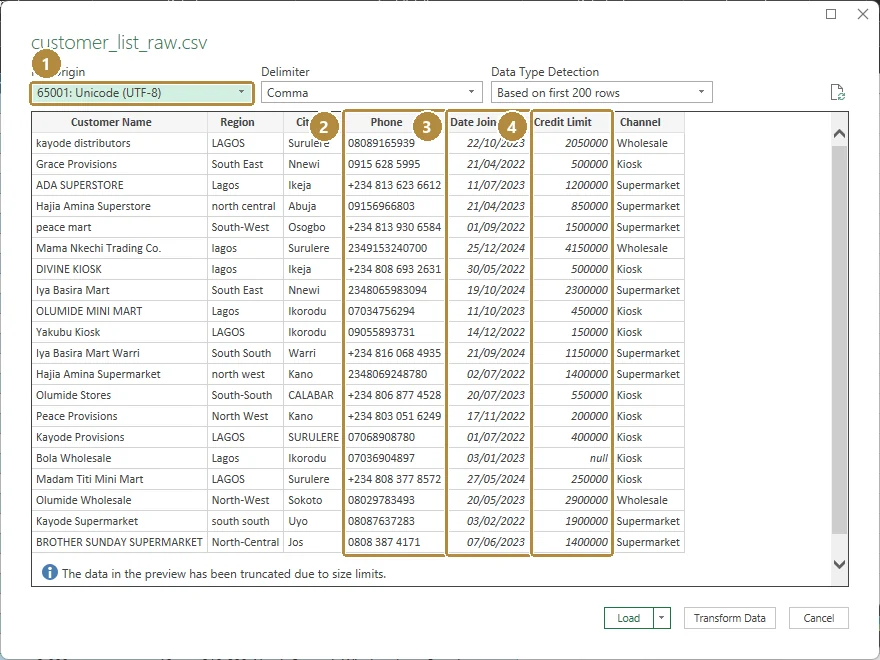
- File Origin: 65001 Unicode (UTF-8), so
₦is read correctly. - Phone stays as text, leading zeros intact.
- Date Joined is recognised as dates. It read them day-first because this computer uses a UK date format. On a US-format computer, change the type with a locale in Power Query, as described above.
- Credit Limit is recognised as numbers; the blank one shows as
null.
Import gives the cleanest starting point, but names, regions and duplicates still need fixing, and that's what the formulas do.
Example
Three raw rows, and what the cleaning formulas make of them:
| Raw | Clean |
|---|---|
kayode distributors · LAGOS · 22/10/2023 · ₦2,050,000 | Kayode Distributors · Lagos · 22 Oct 2023 · 2,050,000 |
ADA SUPERSTORE · Lagos · 2023-07-11 · 1,200,000 | Ada Superstore · Lagos · 11 Jul 2023 · 1,200,000 |
Hajia Amina Superstore · north central · 21/04/2023 · 850000 | Hajia Amina Superstore · North Central · 21 Apr 2023 · 850,000 |
Each cleaned value is one formula from this lesson. The name is PROPER(TRIM(...)), the region is the RegionMap lookup, the date is the Power Query locale, and the limit is the nested SUBSTITUTE/VALUE.
Walkthrough
A clean, repeatable workflow:
Keep the raw sheet untouched. Load the file (with the Power Query date fix above) into a sheet called
Raw. If something goes wrong later, you can always start again from it.Count the problems with the checks from step 1 of this lesson, and write the counts down.
Add helper columns next to the data, one per cleaned field:
Name:=PROPER(TRIM(CLEAN([@[Customer Name]])))Region clean: the XLOOKUP onRegionMapPhone clean: theRIGHT/SUBSTITUTEformulaLimit: the nestedSUBSTITUTE/VALUEformula
Here are the helper columns on Kolanut's export, next to the raw data:
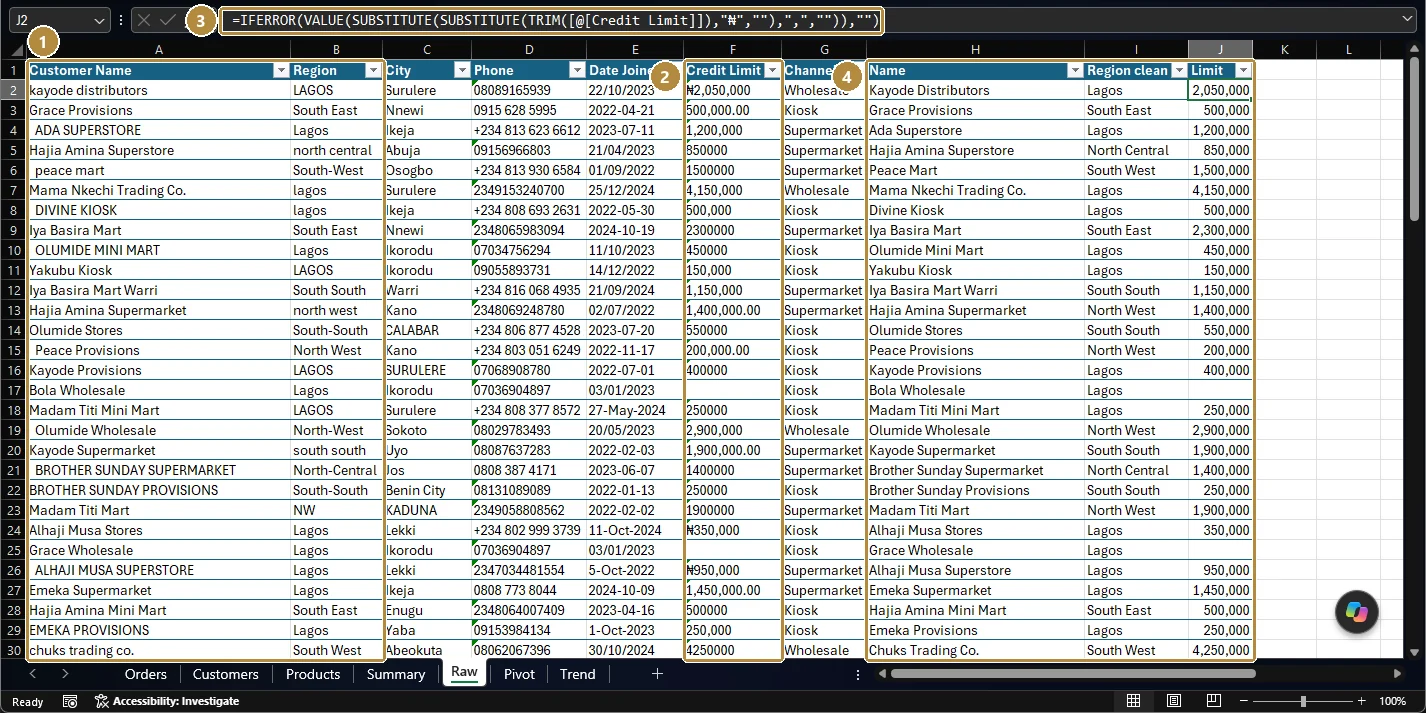
Raw columns (1, 2) and their cleaned versions (4), built by formulas like the one in the formula bar (3).TapClick the image to see it full size. Filter each helper column for
CHECK, errors and blanks, and fix the mapping until none are left.Copy the helper columns and paste them into a new sheet
Cleanwith Paste Special → Values (Ctrl + Alt + V, then V). They're now fixed values, not formulas.On
Clean, sort byLimitlargest to smallest, then Data → Remove Duplicates (Alt, A, M) on the name column: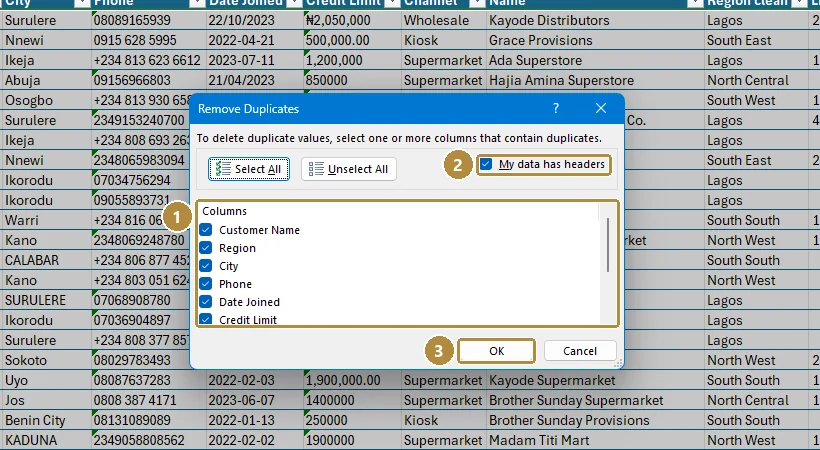
Remove Duplicates. Tick only the columns that define a duplicate (1): here, just the cleaned name.TapClick the image to see it full size. - Columns: untick everything except the cleaned name.
- My data has headers keeps the header row out of the comparison.
- OK reports how many duplicates were removed (12 here) and how many unique rows remain (90).
Count again. Six distinct regions, 90 customers, 90 distinct phones, every limit a number or blank.
Log it: on a
Notessheet, write what you did and the row counts before and after (102 → 90). Someone will ask.
Summary
| Problem | Fix |
|---|---|
| Stray spaces | TRIM (and SUBSTITUTE(x, CHAR(160), " ") for web spaces) |
| Invisible characters | CLEAN |
| Random capitals | PROPER, UPPER, LOWER |
| Unwanted characters (₦, commas, dashes) | SUBSTITUTE(x, old, "") |
| Numbers stored as text | VALUE after removing symbols |
| Part of a value | LEFT, RIGHT, MID, LEN |
| Many spellings of one category | A mapping table and XLOOKUP |
| Repeated rows | Clean, sort, then Data → Remove Duplicates |
| Mixed date formats | Power Query → Change Type → Using Locale |
Practice
Practice
Before any cleaning, how many rows of the raw export have a blank Credit Limit?
Practice
After trimming, standardising regions and removing duplicates, how many customers are in the Lagos region?
Practice
After fixing the dates (day first) and removing duplicates, how many customers joined in the first half of 2024 (1 January to 30 June 2024)?
Challenge
Challenge · optional
What is the total credit limit of the cleaned, de-duplicated customers, counting only customers whose limit is known? Where a customer appears twice and only one copy has a limit, keep the copy with the limit.
More practice
Optional drills. They don't count towards the certificate, but they're the fastest way to make this lesson stick. Several use a different dataset from the lesson on purpose: if you can do the same thing on unfamiliar data, you've really learned it.
Drill · optional
Before cleaning anything: how many rows of customer_list_raw.csv have a Customer Name with extra spaces at the start or end?
Drill · optional
How many rows of the raw export have a Phone number containing a space?
Check your understanding
Answer every question to check.